► Supported Devices
R36S
RG353VS
RG353PS
ArkOS 2.0
RG353V Dual Boot
RG353P Dual Boot
Introduction
This guide applies to all handhelds running
ArkOS 2.0, including the R36S,
RG353VS, and RG353PS. Devices
like the RG353V and RG353P can
dual boot between ArkOS and Android.
The first half of this guide covers ArkOS setup for all models,
while the final section explains how to use Android mode on
dual-boot devices.
Prepare Your ROMs Folder
Before inserting your cards, structure your ROMs folder on your
computer to match the OS layout. Create a main
Roms folder, then sub-folders by platform, such as
nes, snes, or gba. Place each
system's games inside its folder using supported file types.
Tip: If a platform's games do not appear,
verify the folder names match ArkOS expectations and refresh
your game list.
System Setup
-
1
Turn off your device and remove any original cards.
-
2
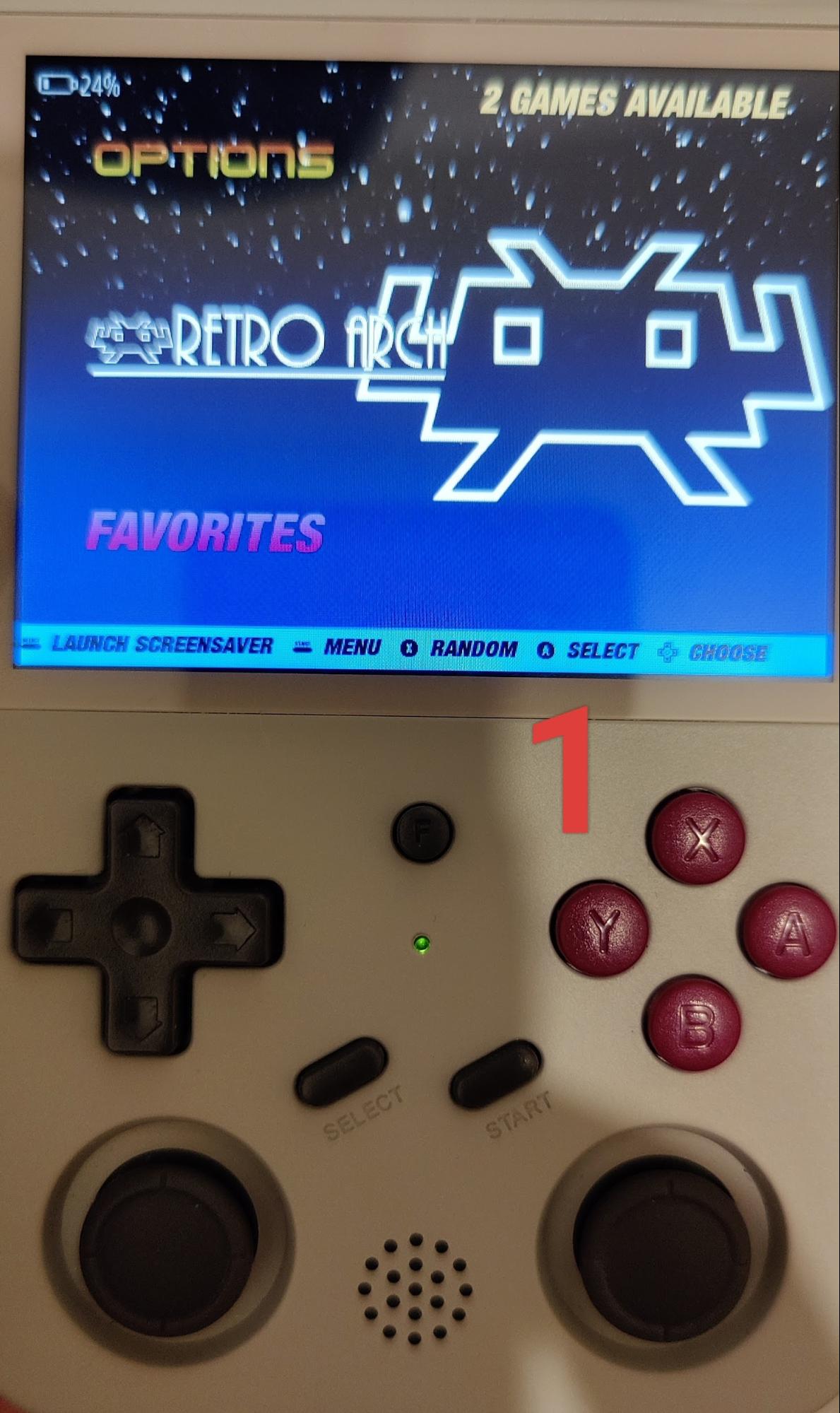
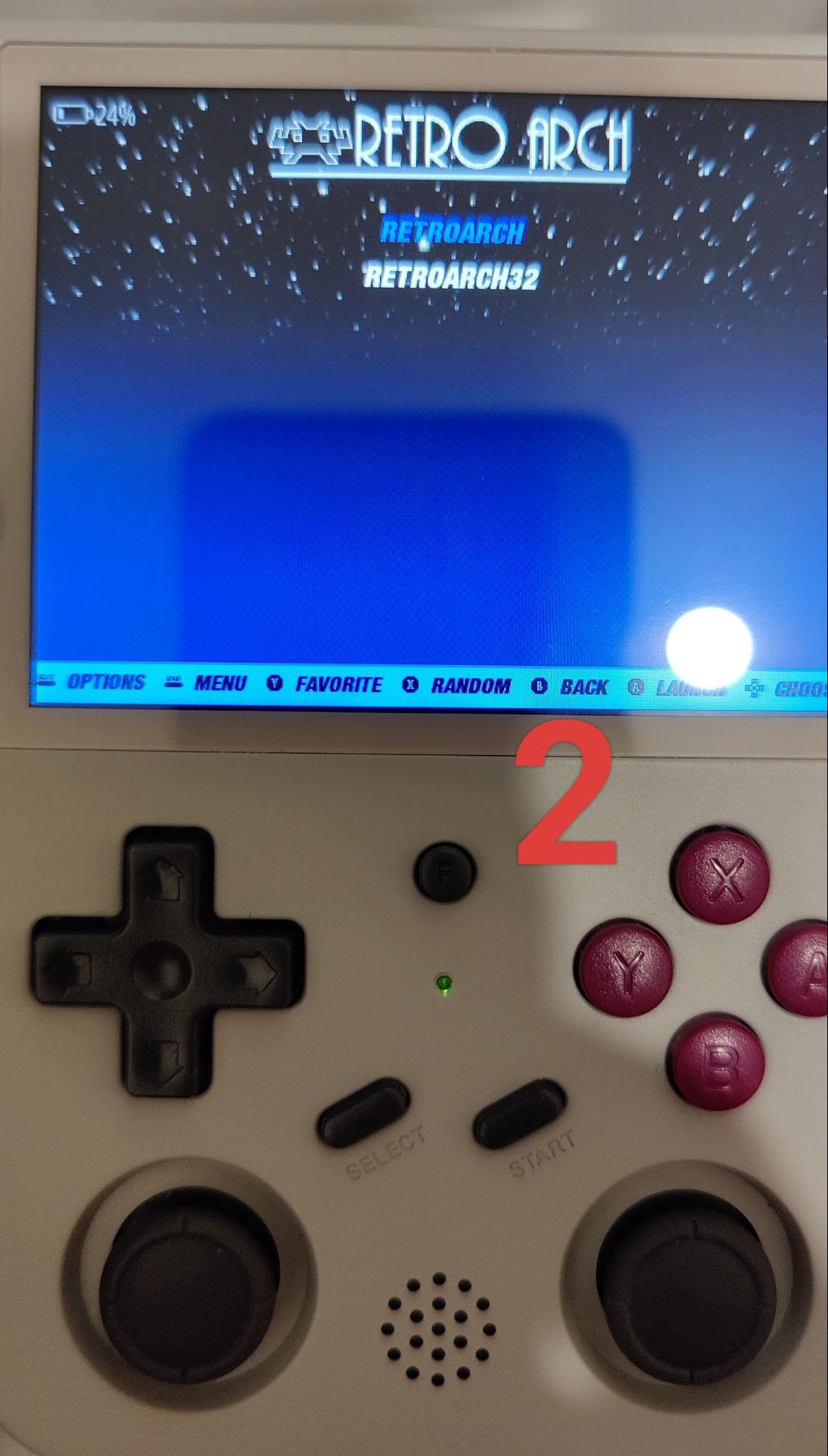
Insert the 32GB ArkOS card in
slot 1 and the
128GB games card in slot 2.
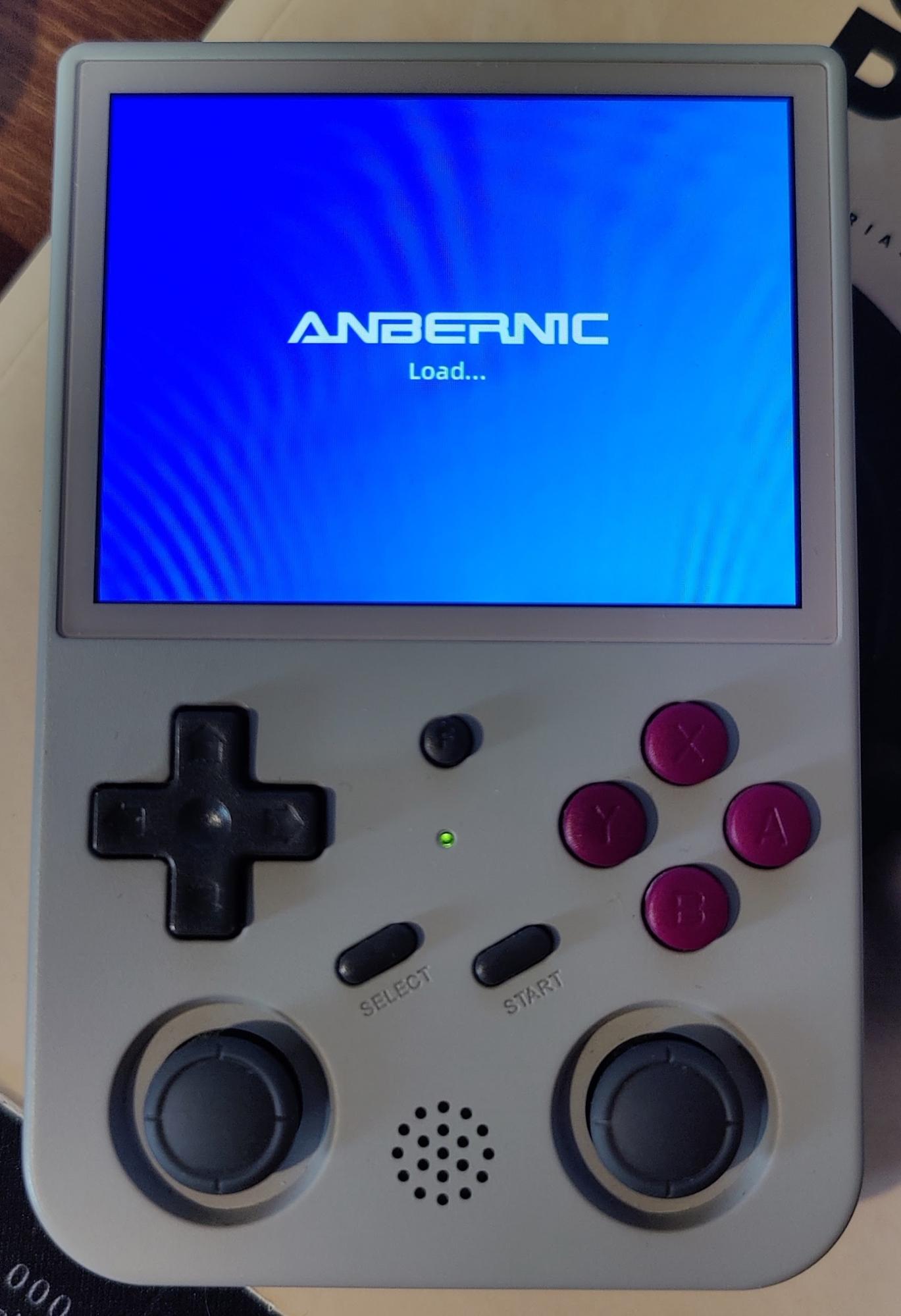
Power on and wait for installation to complete.
-
3
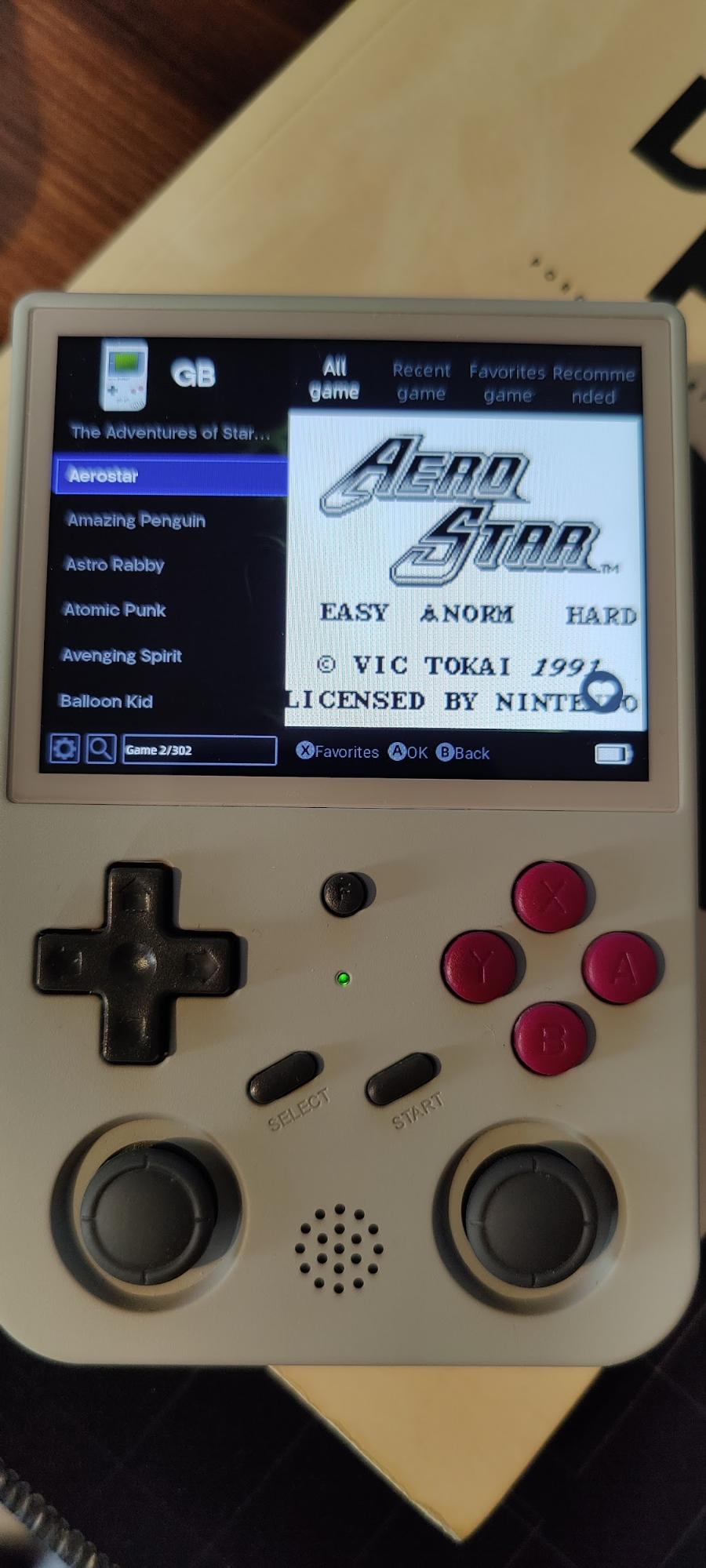
Once the main menu appears with game lists, ArkOS 2.0 is
installed.
Installing or Switching to Games SD
-
1
Turn off the device, insert the
128GB games card in slot 2,
then power on.
-
2
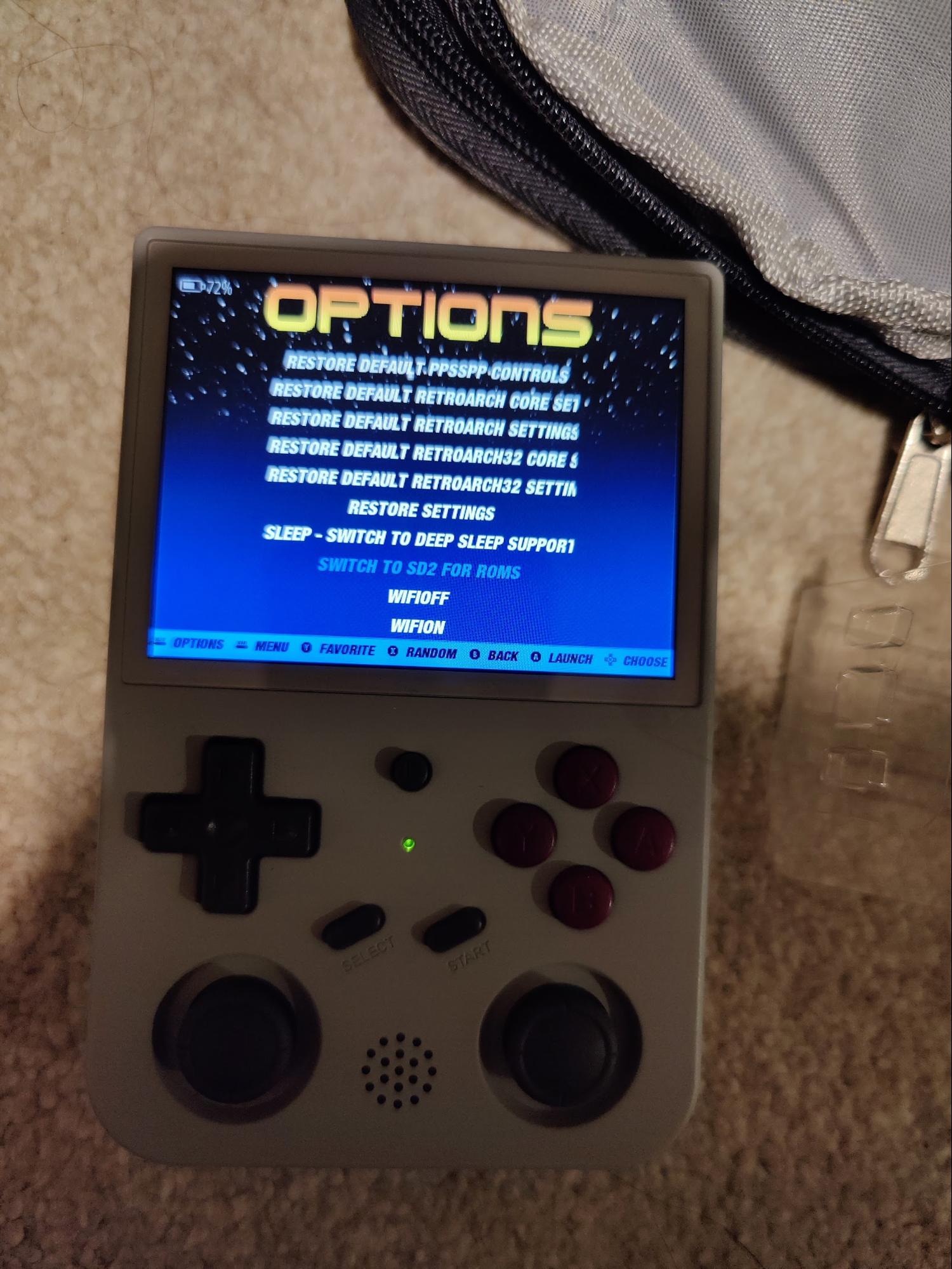
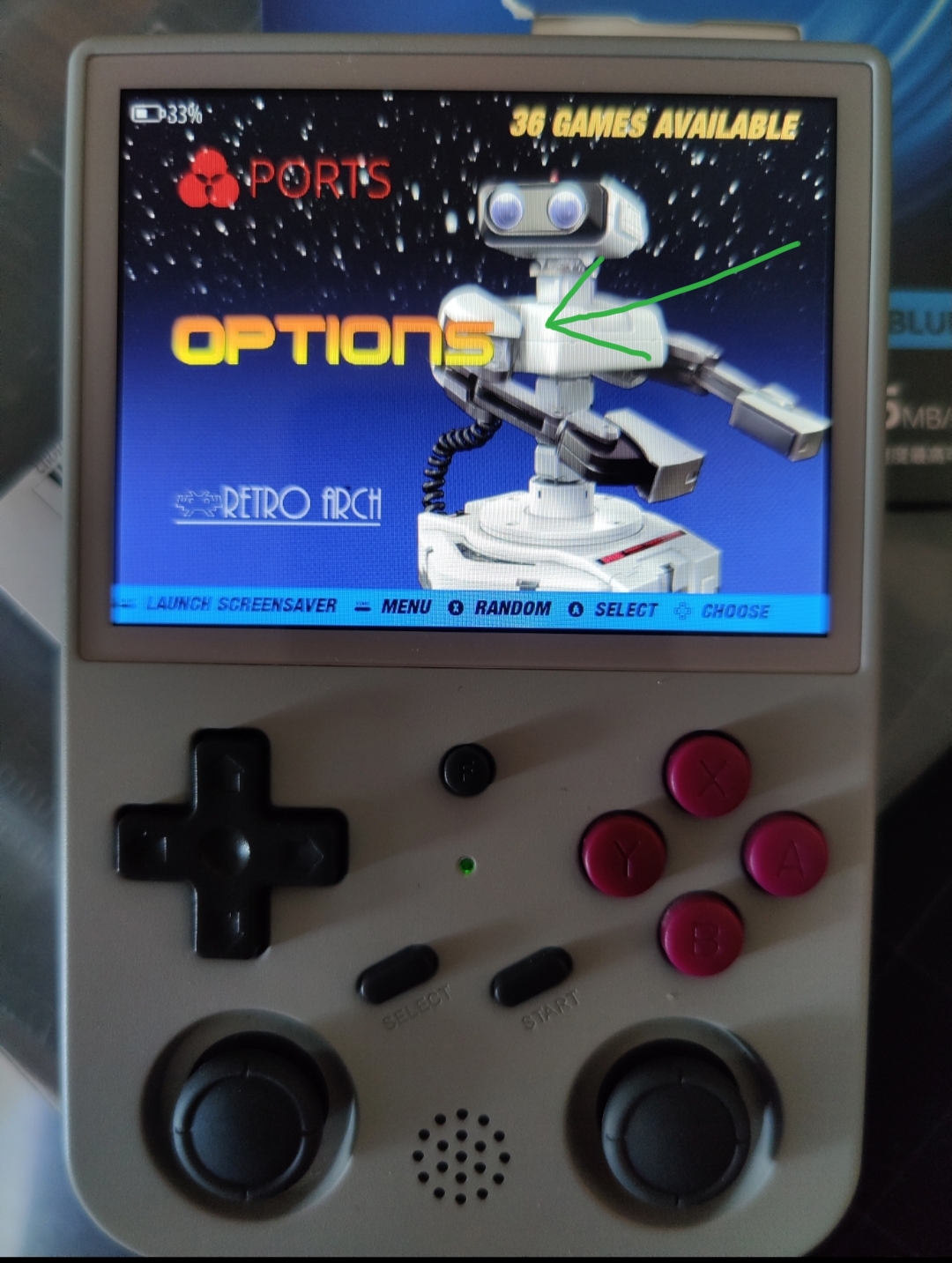
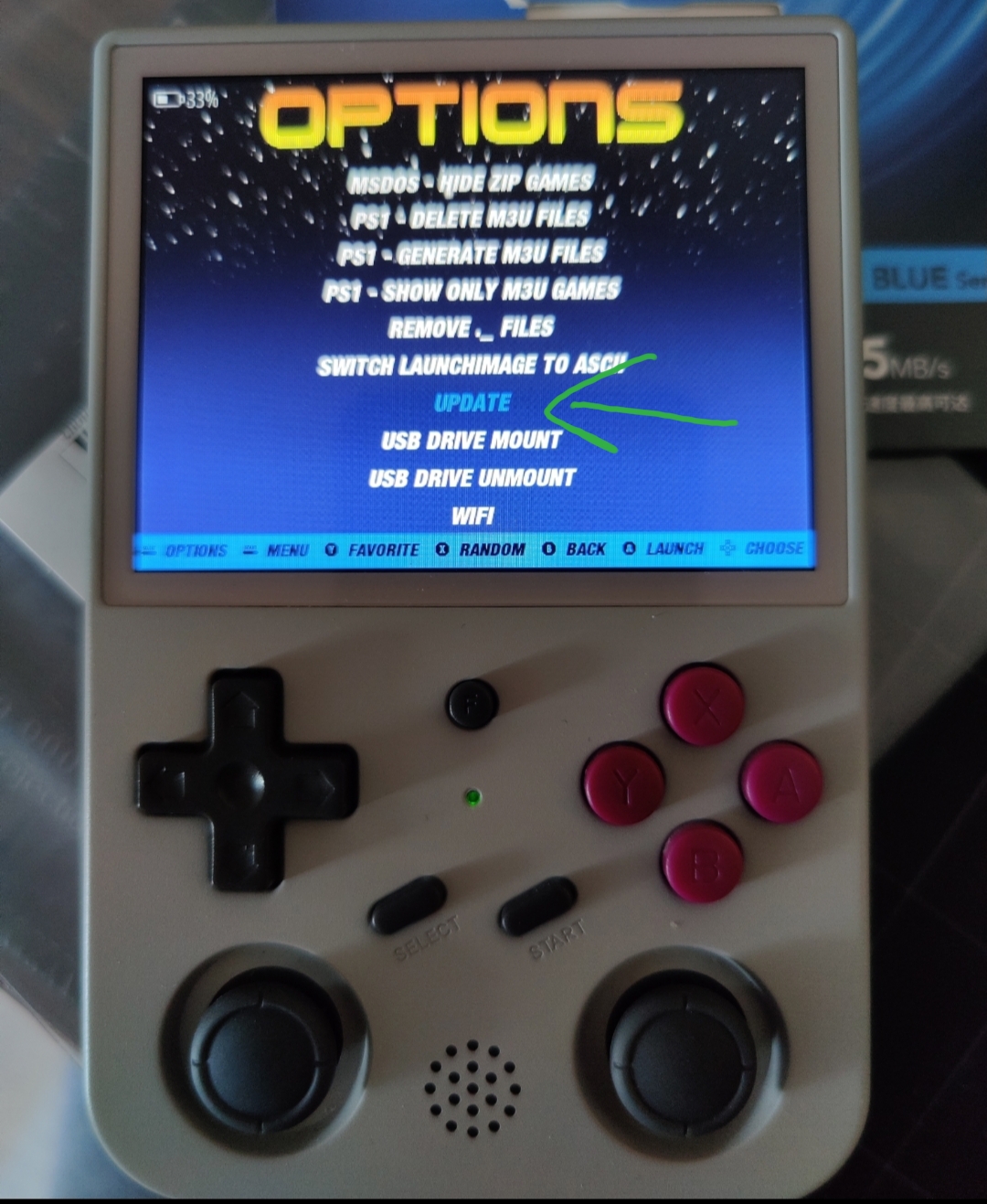
Go to Options → Advanced →
Switch to second SD for Roms.
-
3
Wait for the process to finish. Games will appear organised by
system.
-
4
Press SELECT → Update Game List, or
restart EmulationStation.
Emulator Change
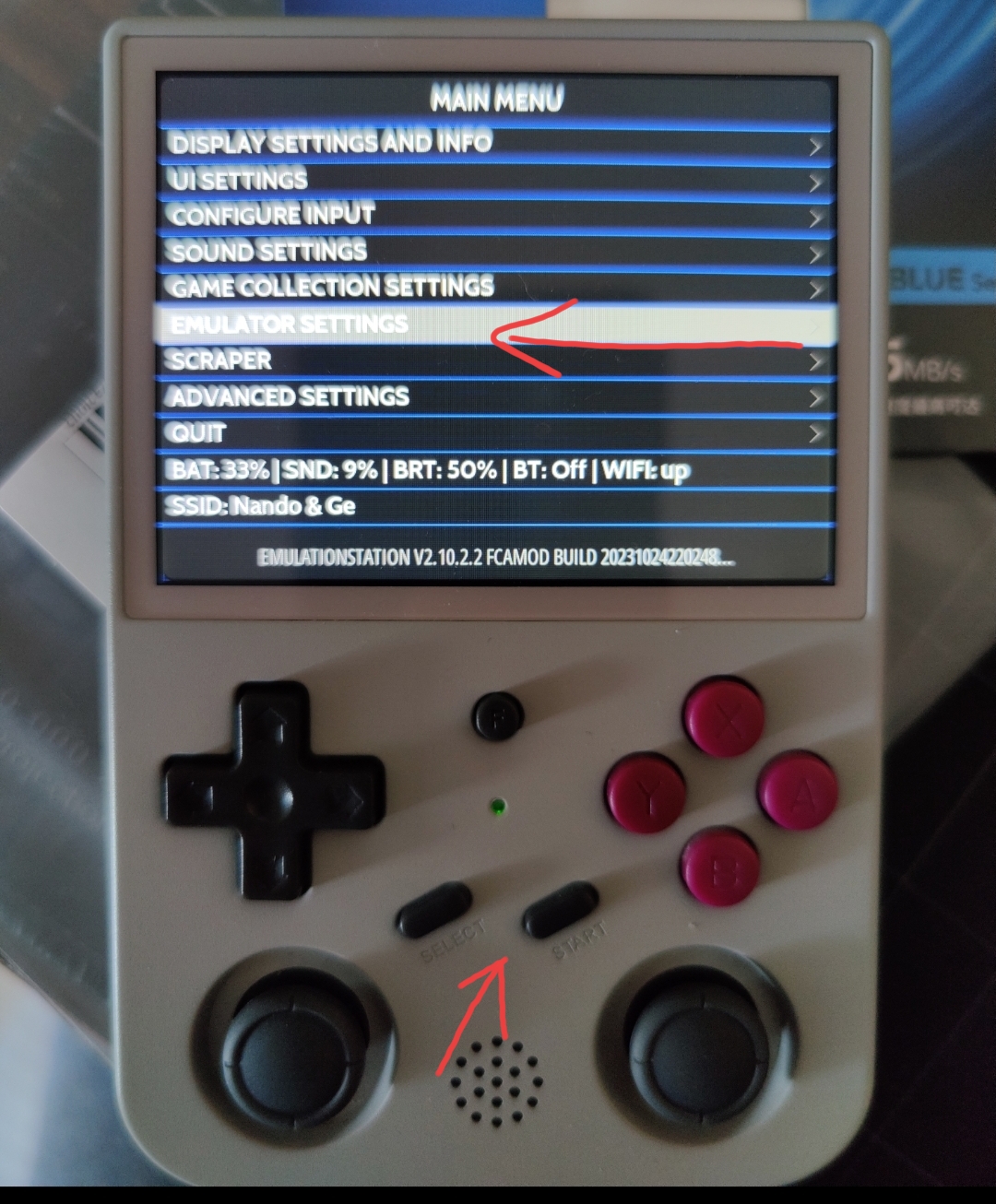
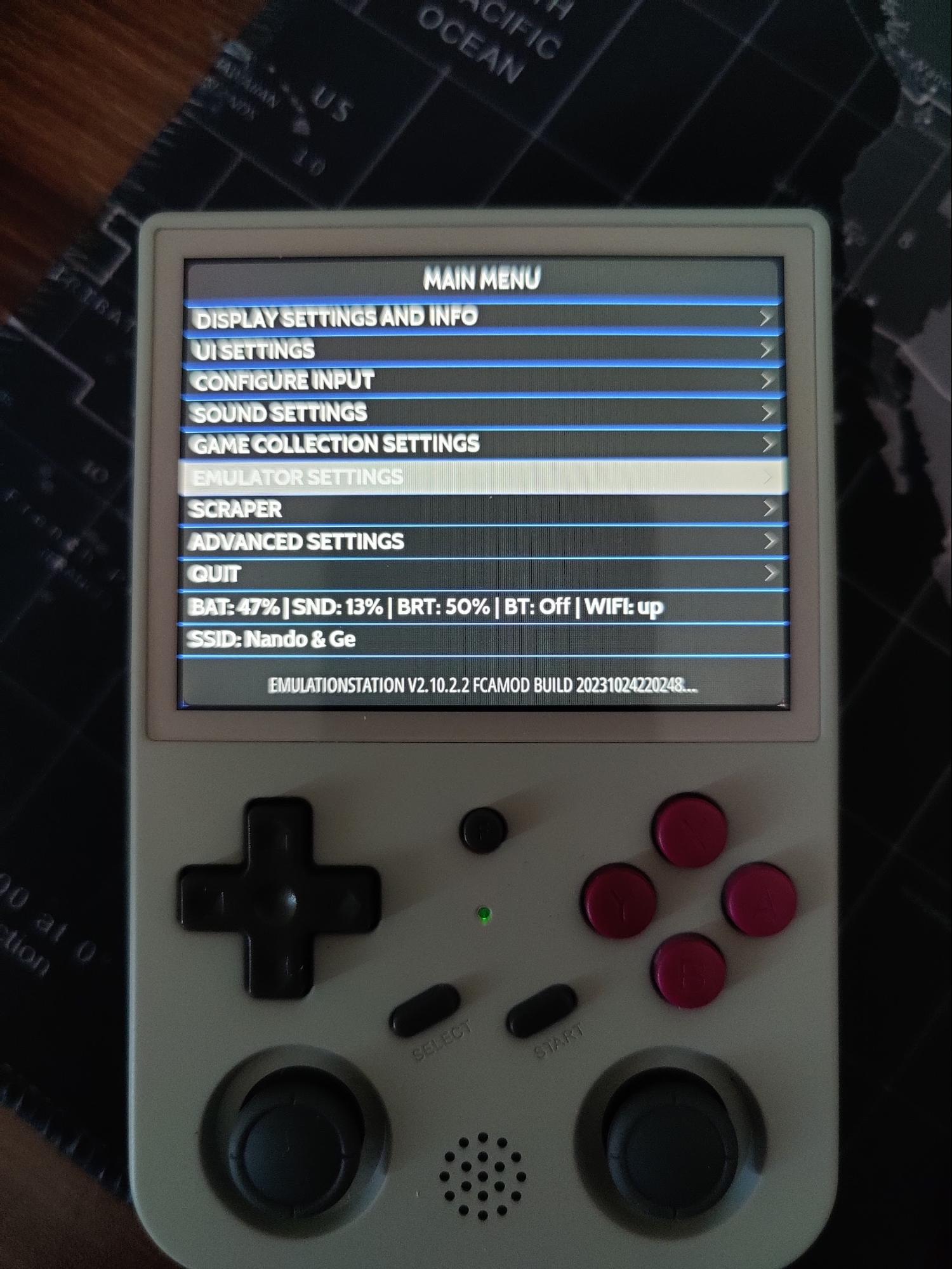
Heavier titles like Dreamcast, PSP, PS1, and N64 may run smoother
using RetroArch. Press START →
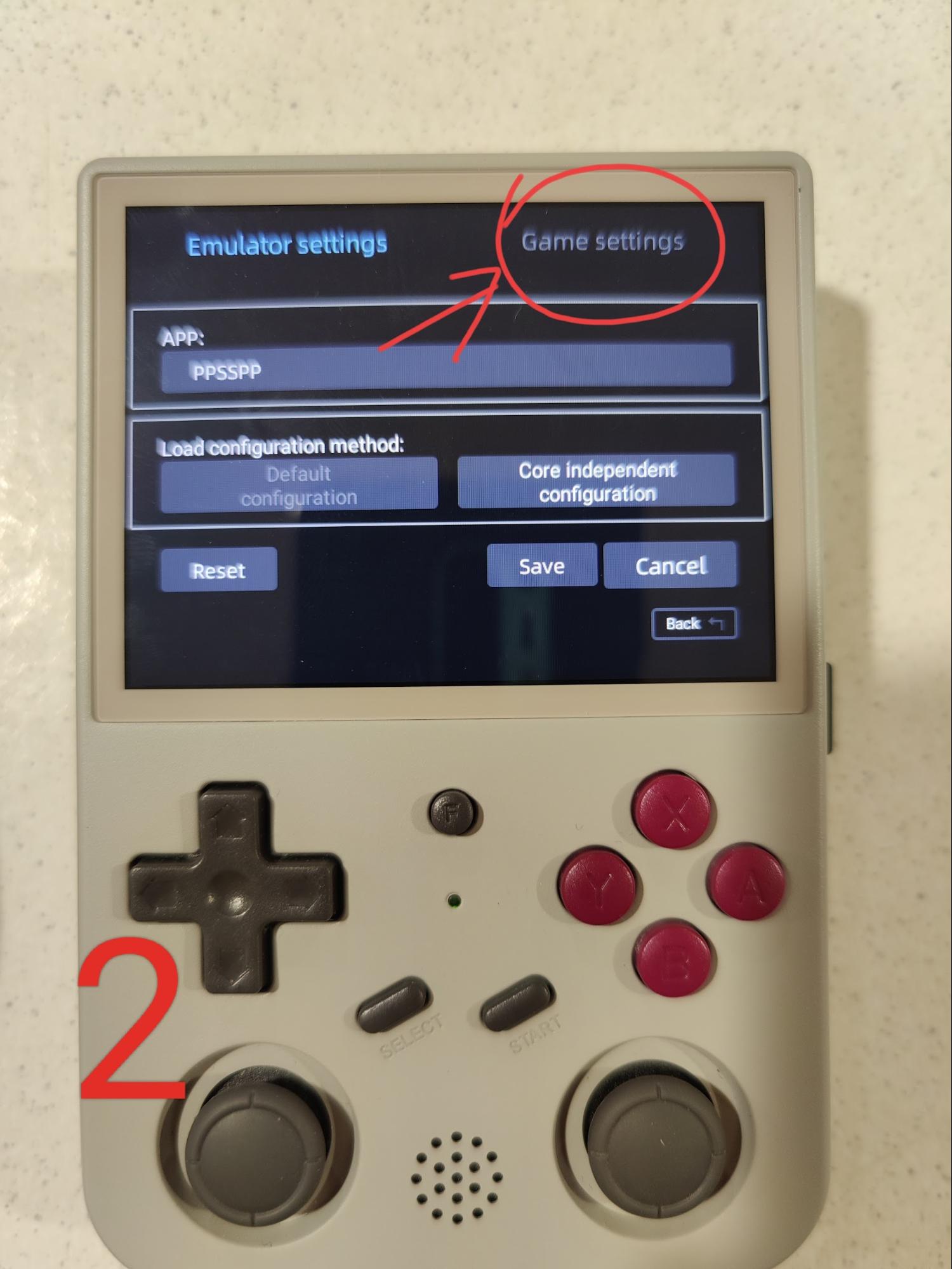
Emulator Settings and set the default emulator per
platform.
PSP Performance Settings
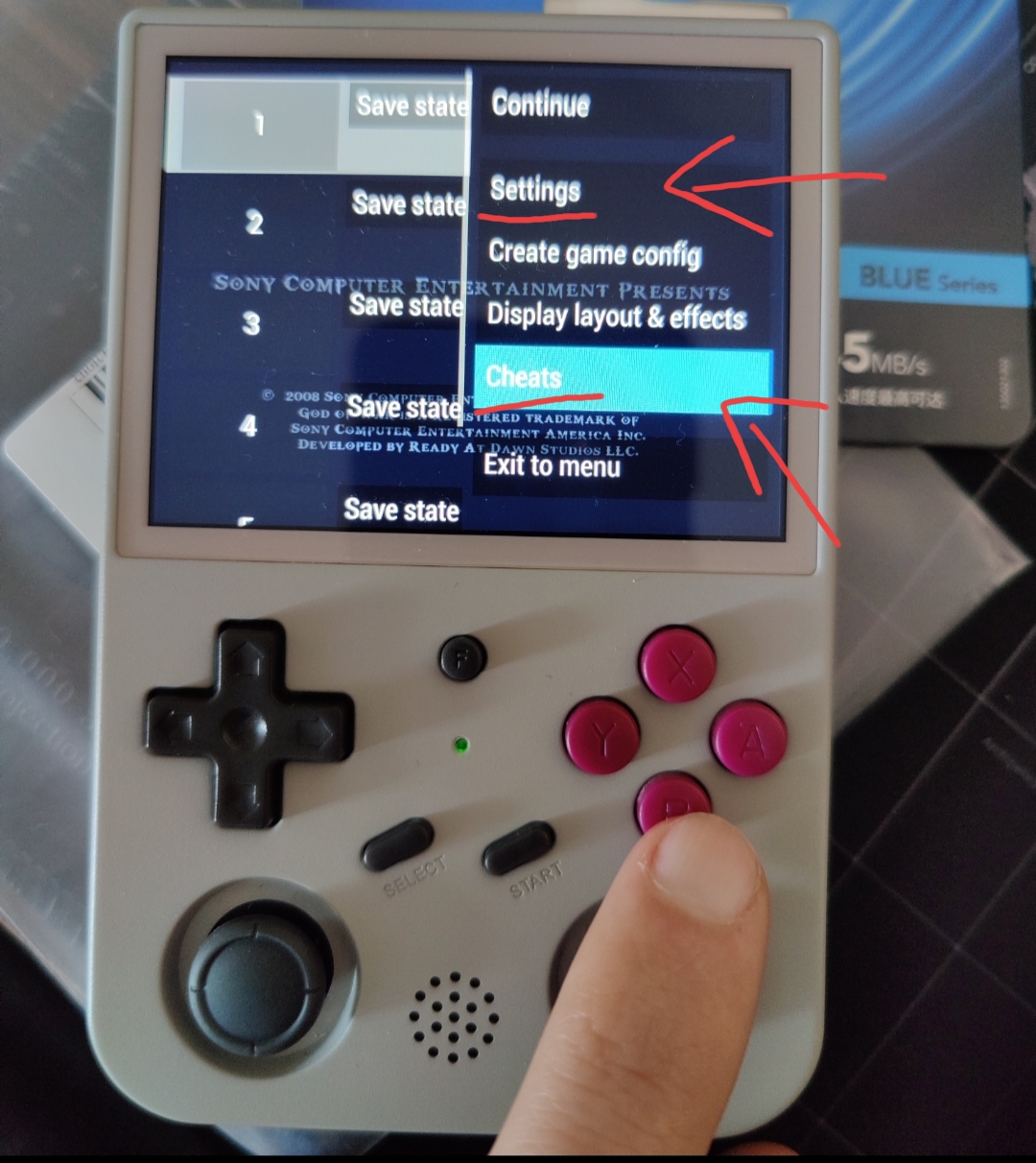
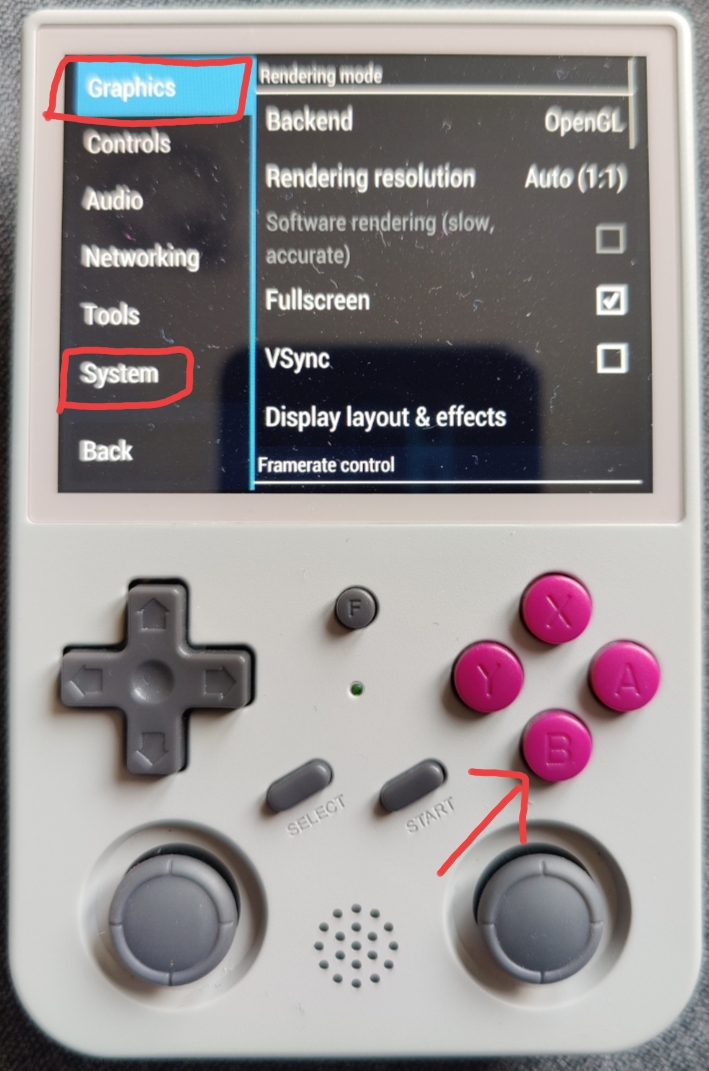
Launch a PSP game, press the right analog stick to open the PPSSPP
menu, then apply these settings:
Graphics
- Backend: OpenGL
- Rendering Resolution: Auto (1:1) or 1x PSP
- Display resolution: Native
- Frame skipping: Off
- Auto frameskip: Off
- Skip buffer effects: Off
- Skip GPU Readbacks: On
- Vertex Cache: On
- Lazy texture caching: On
- Spline/Bezier curves quality: Low
- Hardware transform: On
- Software skinning: On
- Hardware tessellation: On
- Upscaling: Off
- Anisotropic filtering: Off
System
- Fast memory: On
- Ignore bad memory access: On
- I/O timing: Fast
- Emulated CPU clock: Auto
- Force real clock: On
- Enable Cheats: On, for 30 FPS fixes
Tip: For God of War, set CPU clock
to 222 MHz and enable the 30 FPS fix cheat.
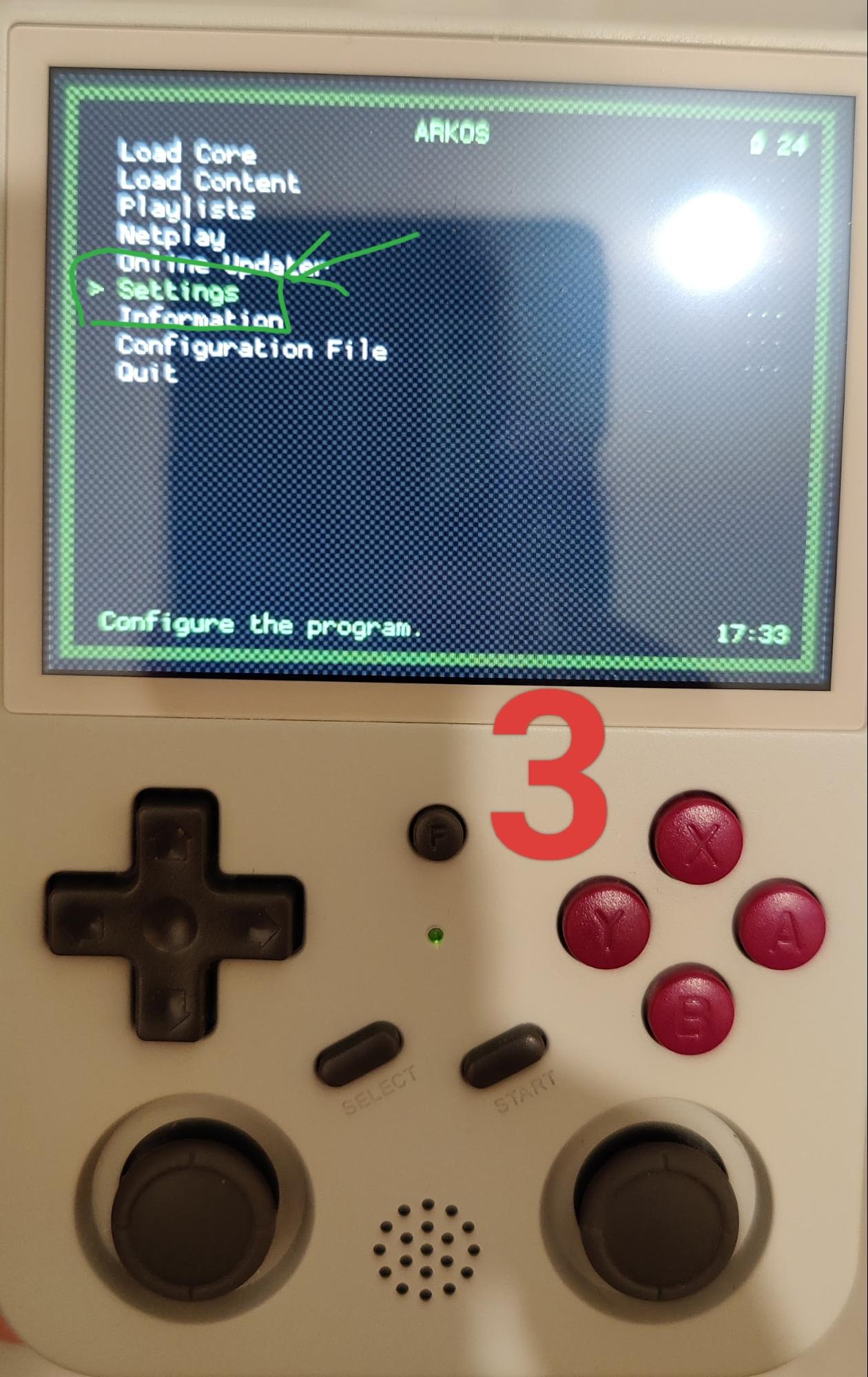
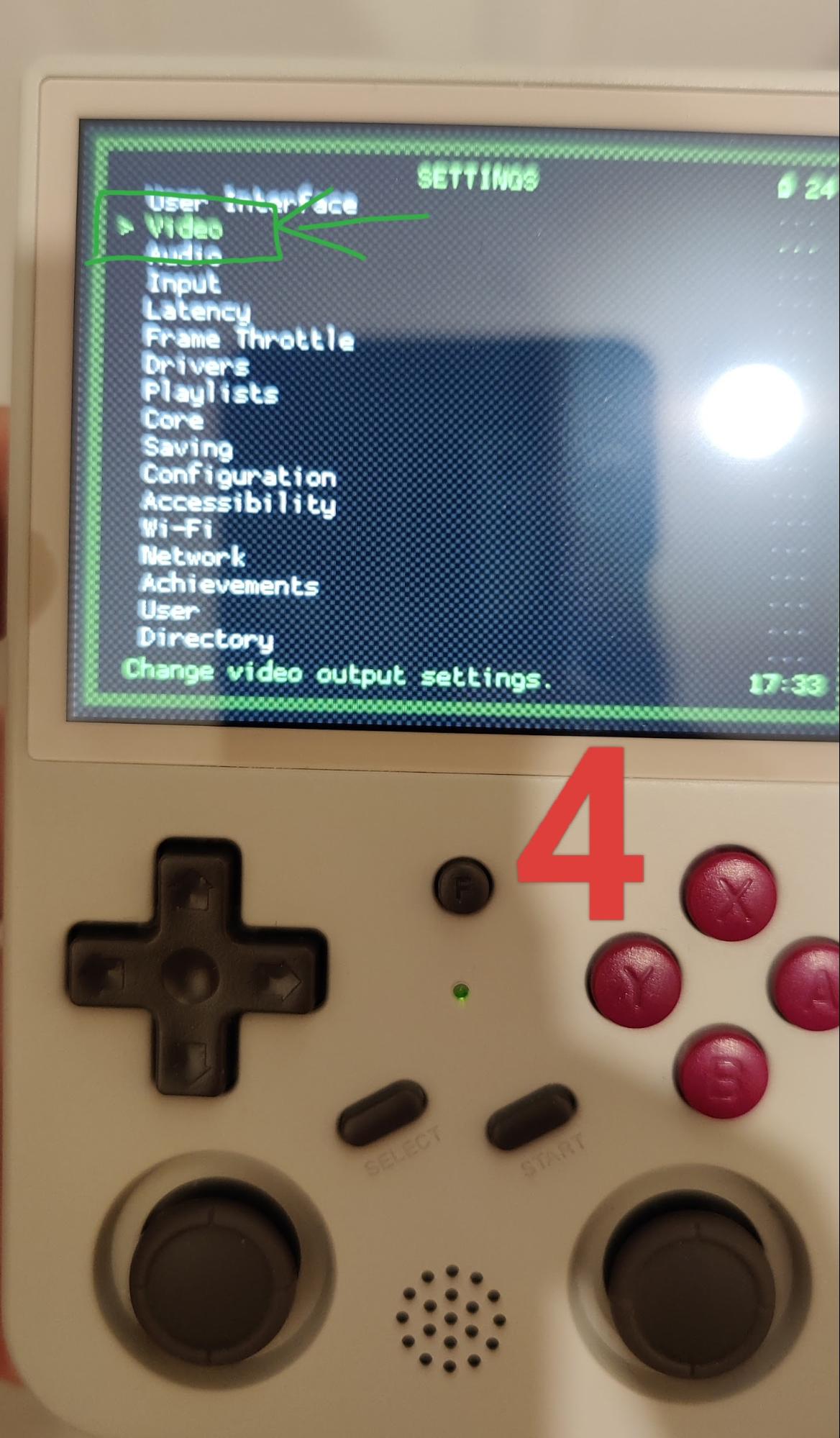
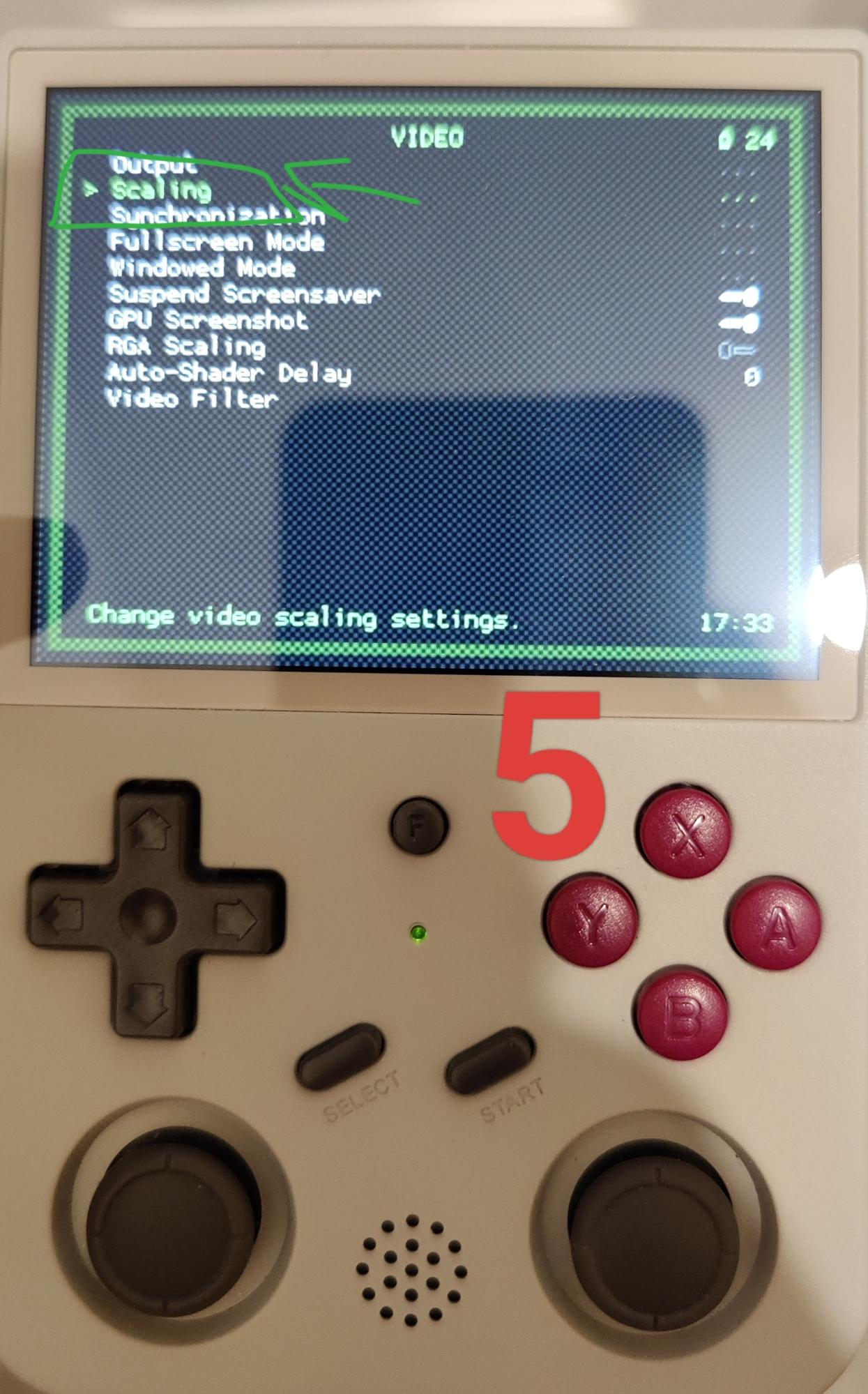
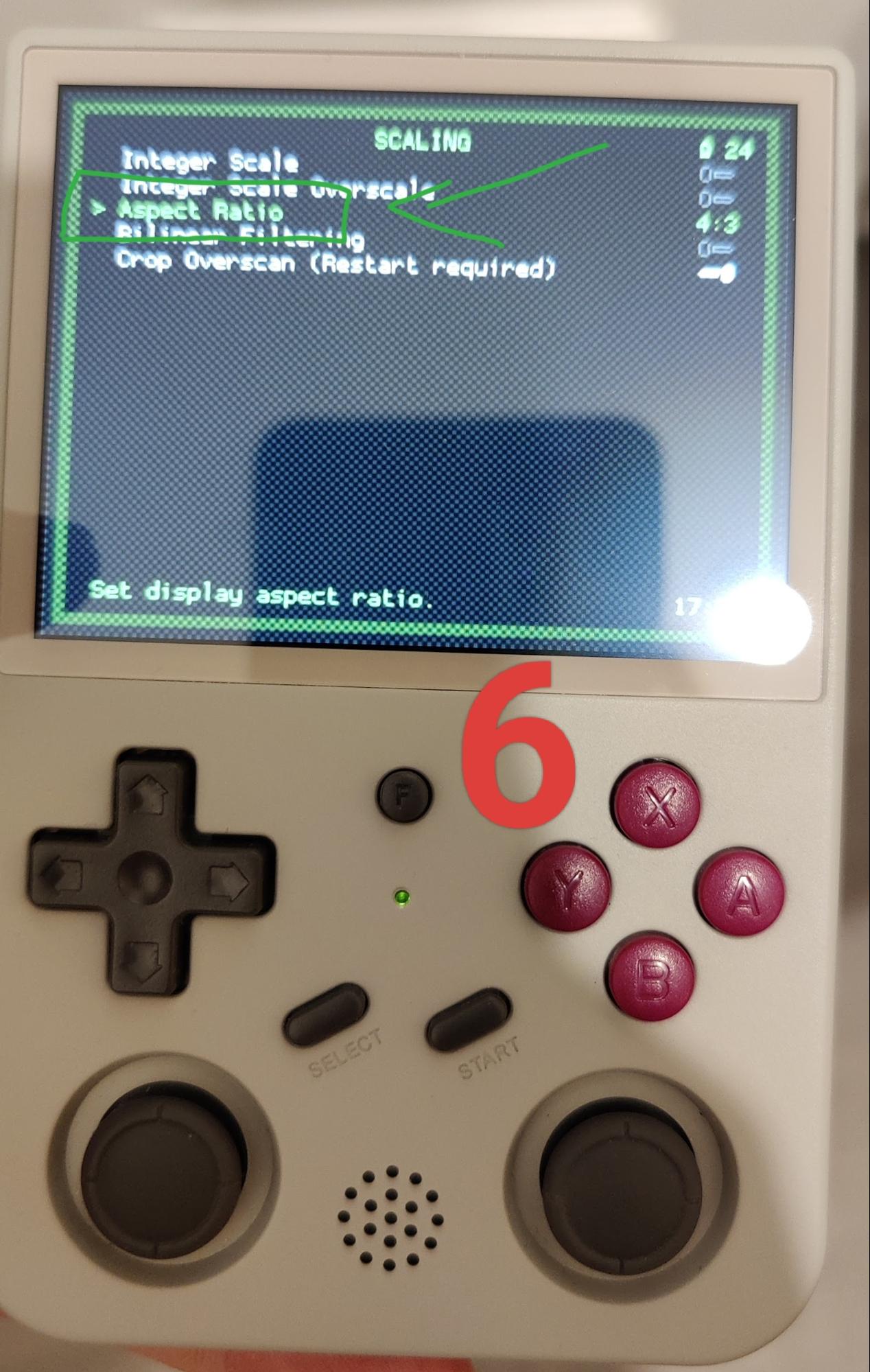
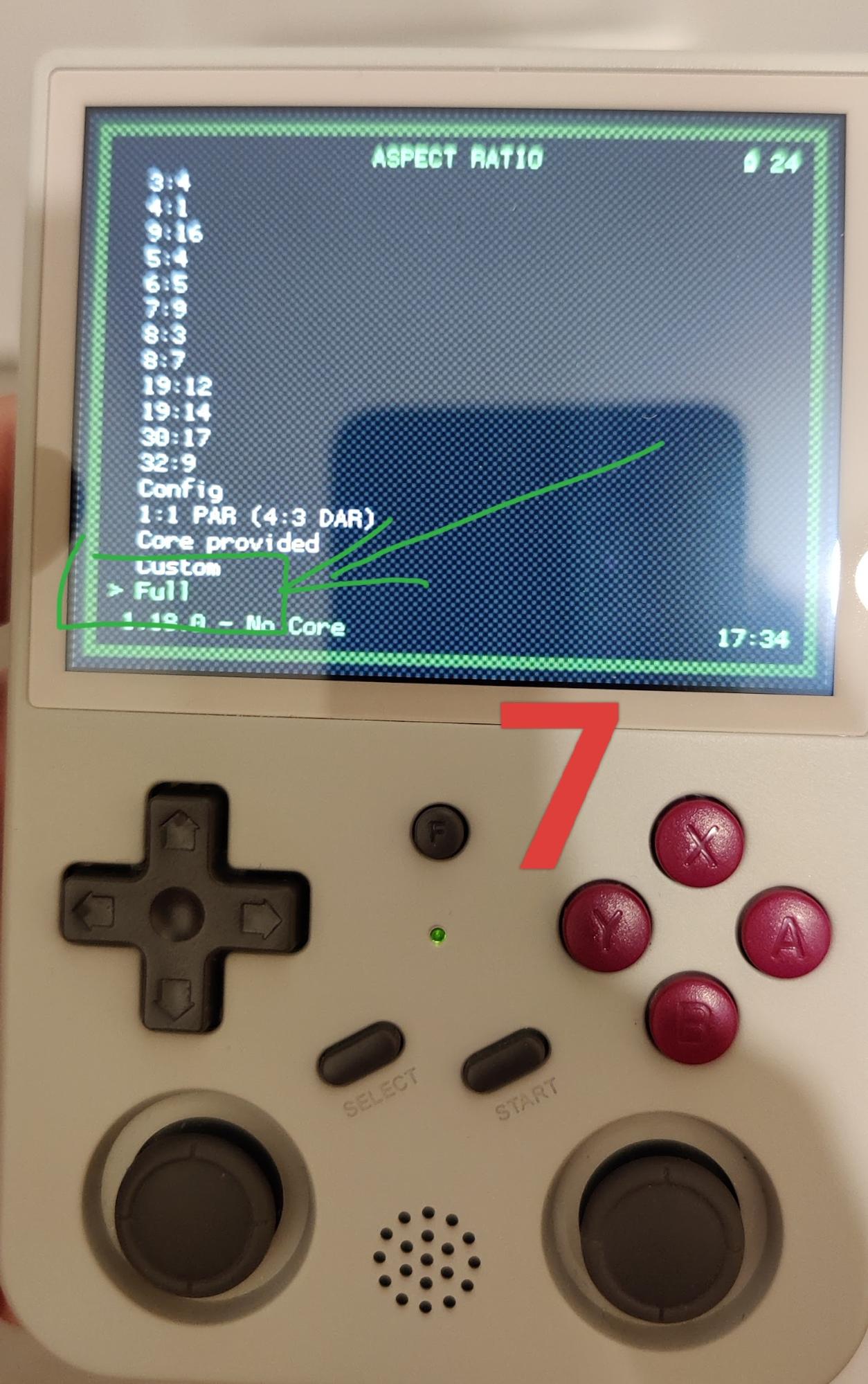
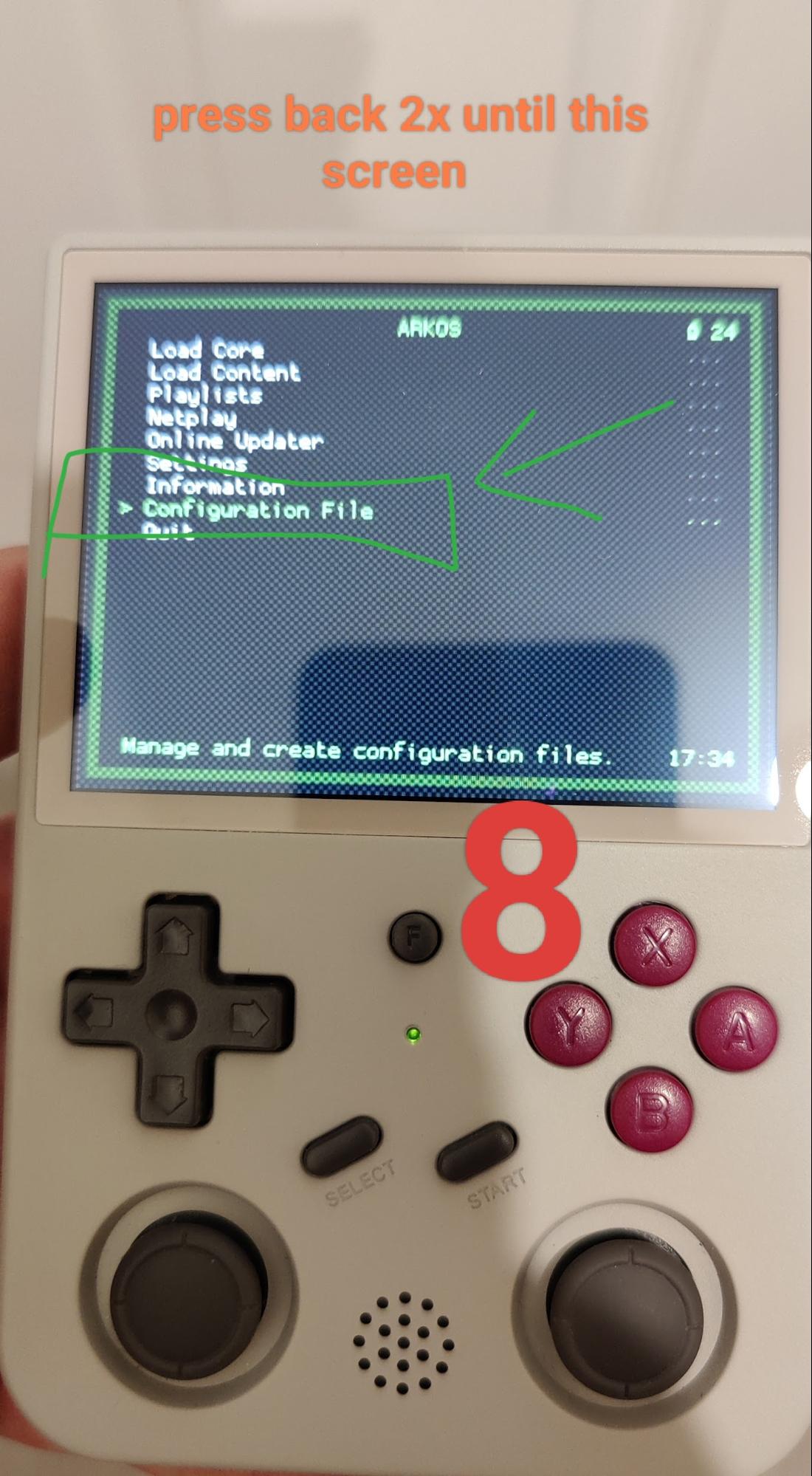
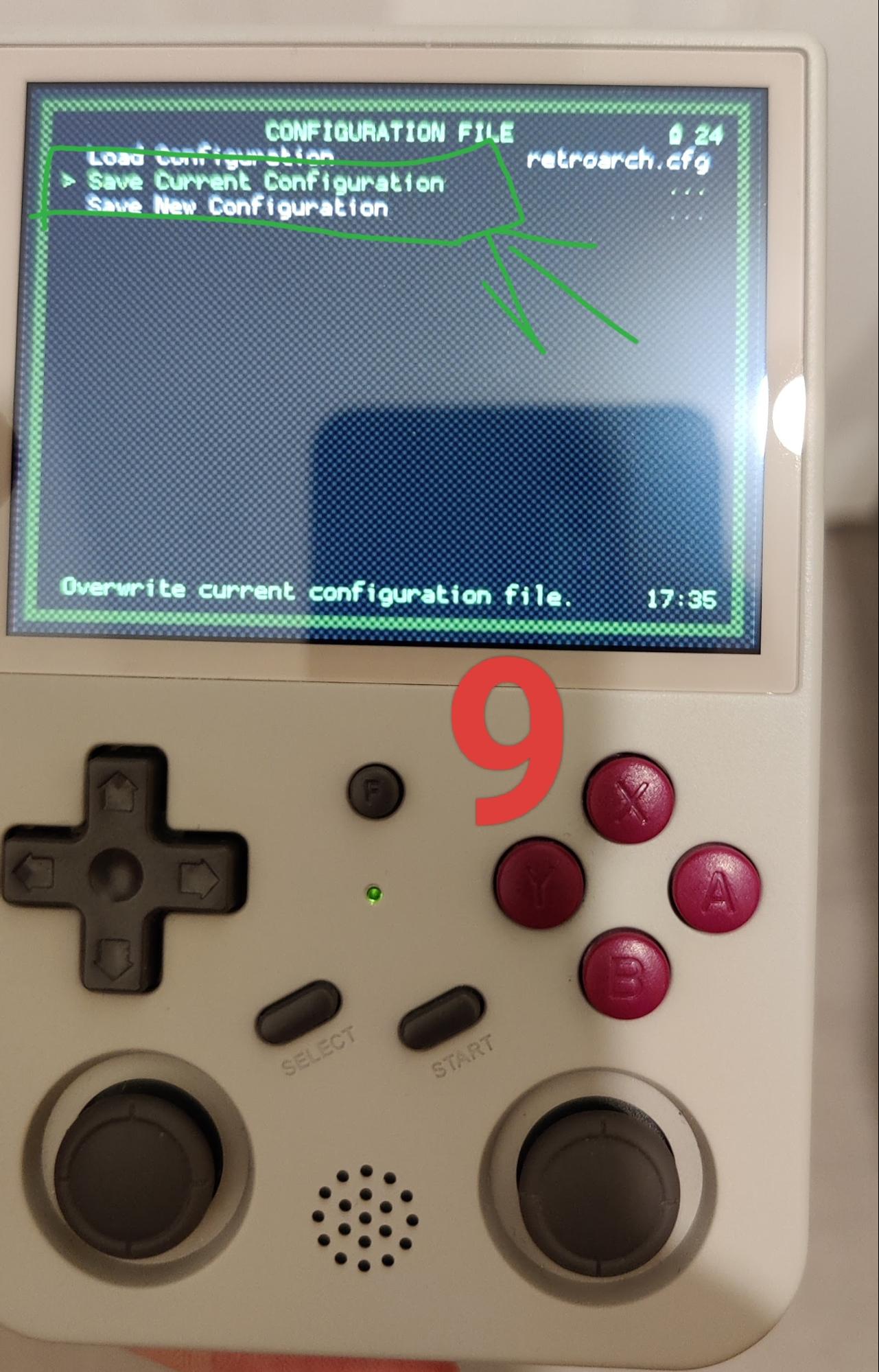
Screen Aspect Ratio
Open the RetroArch menu while in game to adjust aspect ratio or
enable full screen.
RG353V / RG353P Dual Boot
These models can dual boot between ArkOS and
Android.
-
To boot Android: Remove the
slot 1 / 32GB ArkOS card and power on normally.
-
To return to ArkOS: Power off the device and
reinsert the ArkOS card before turning it back on.
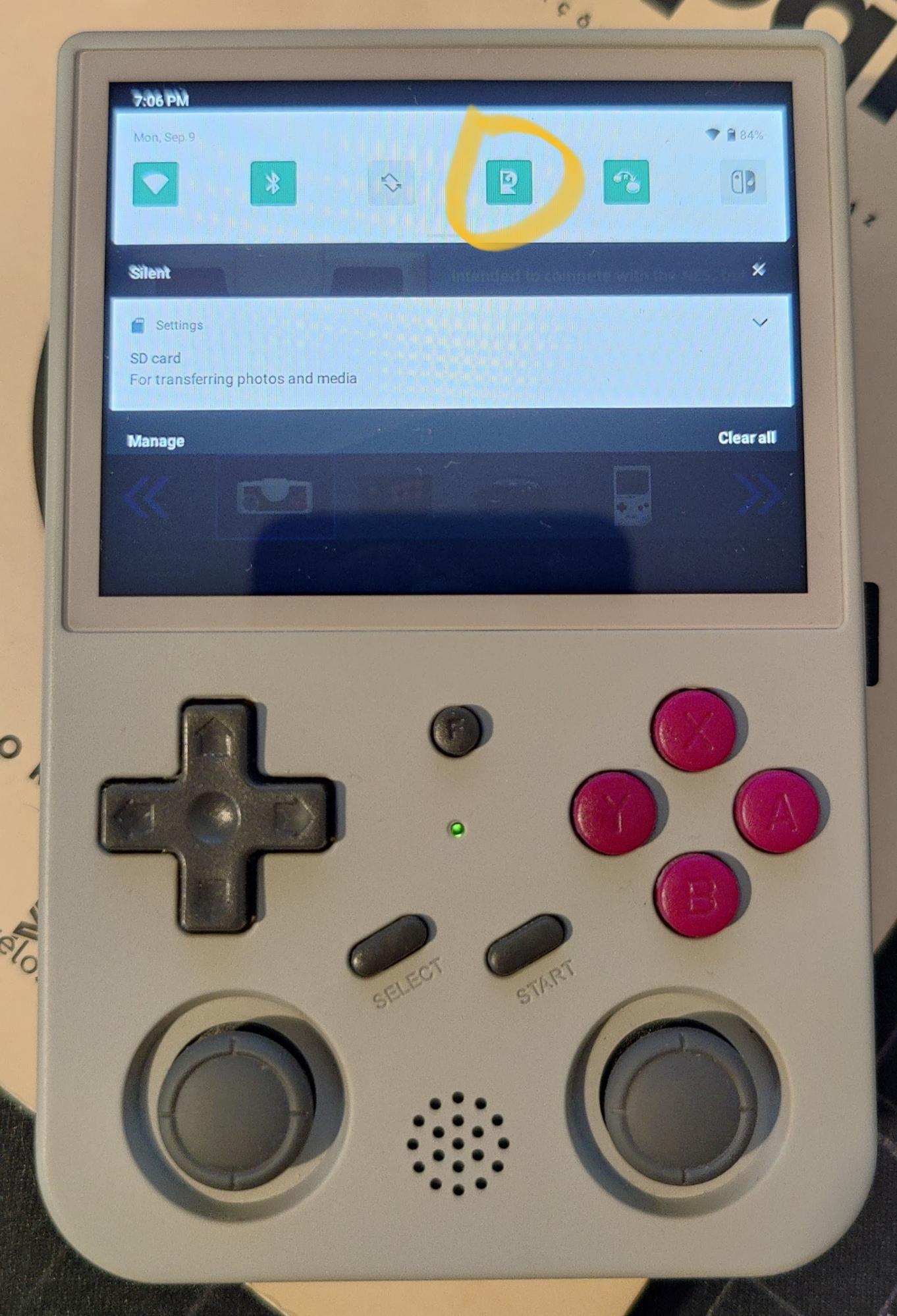
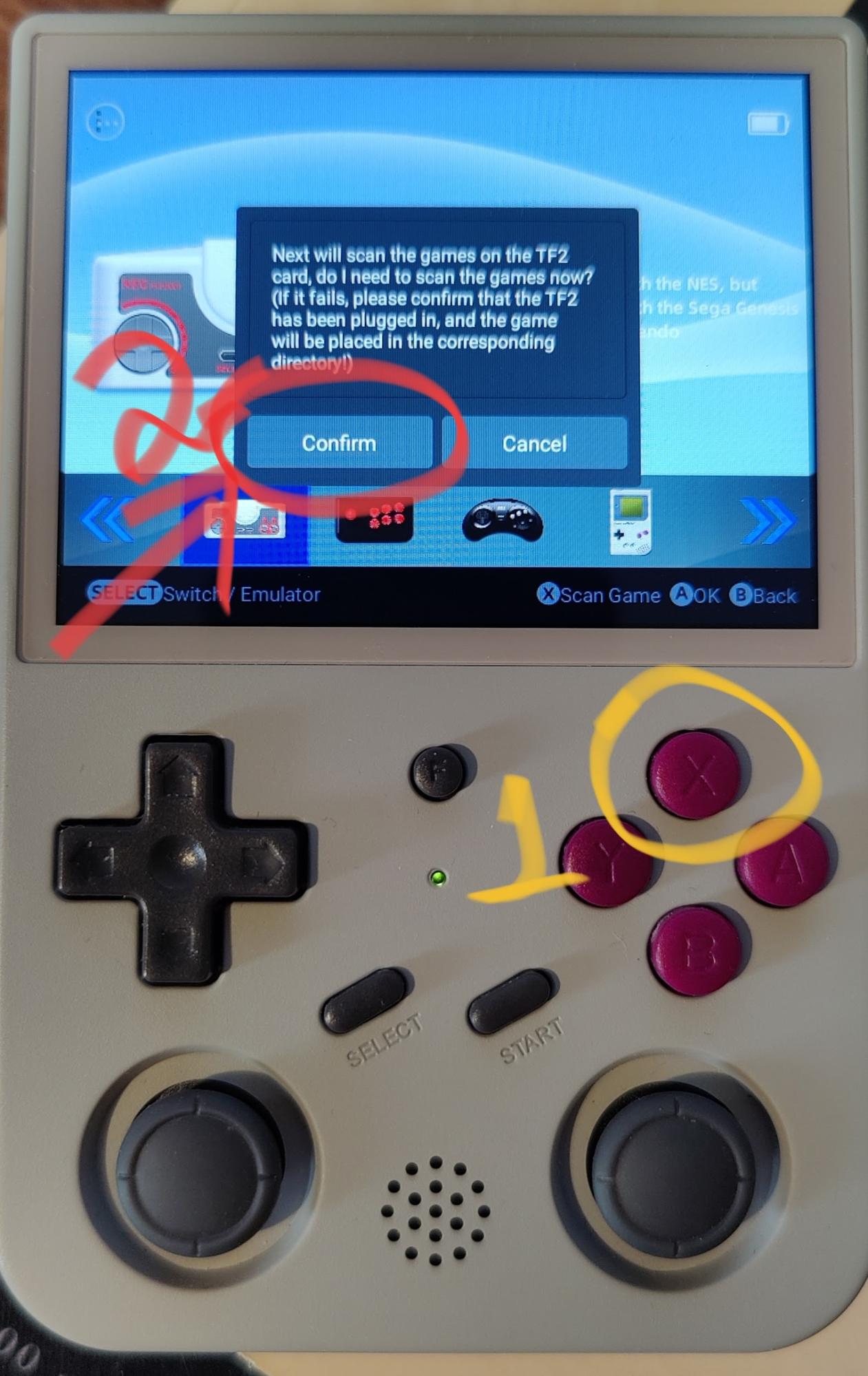
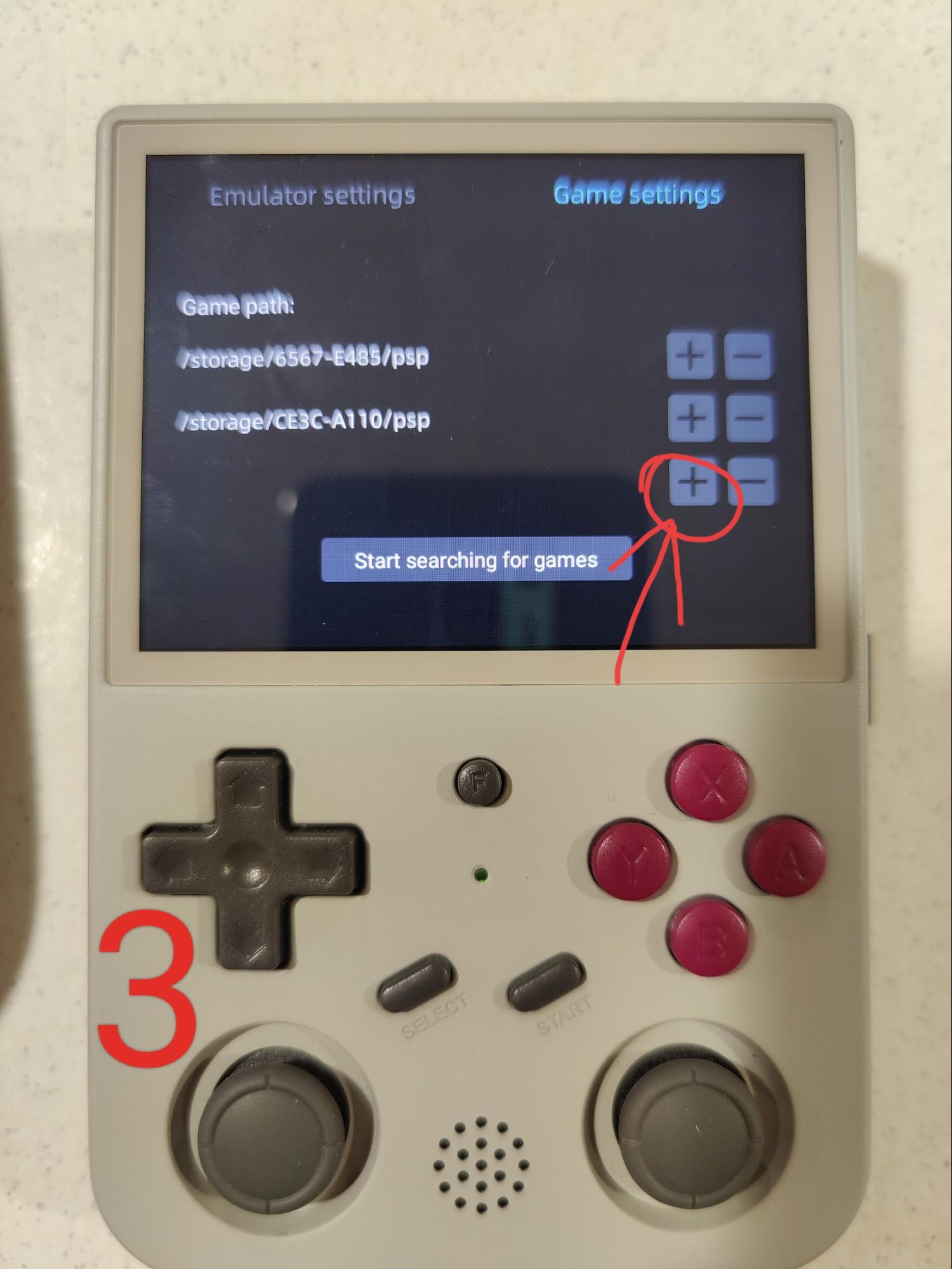
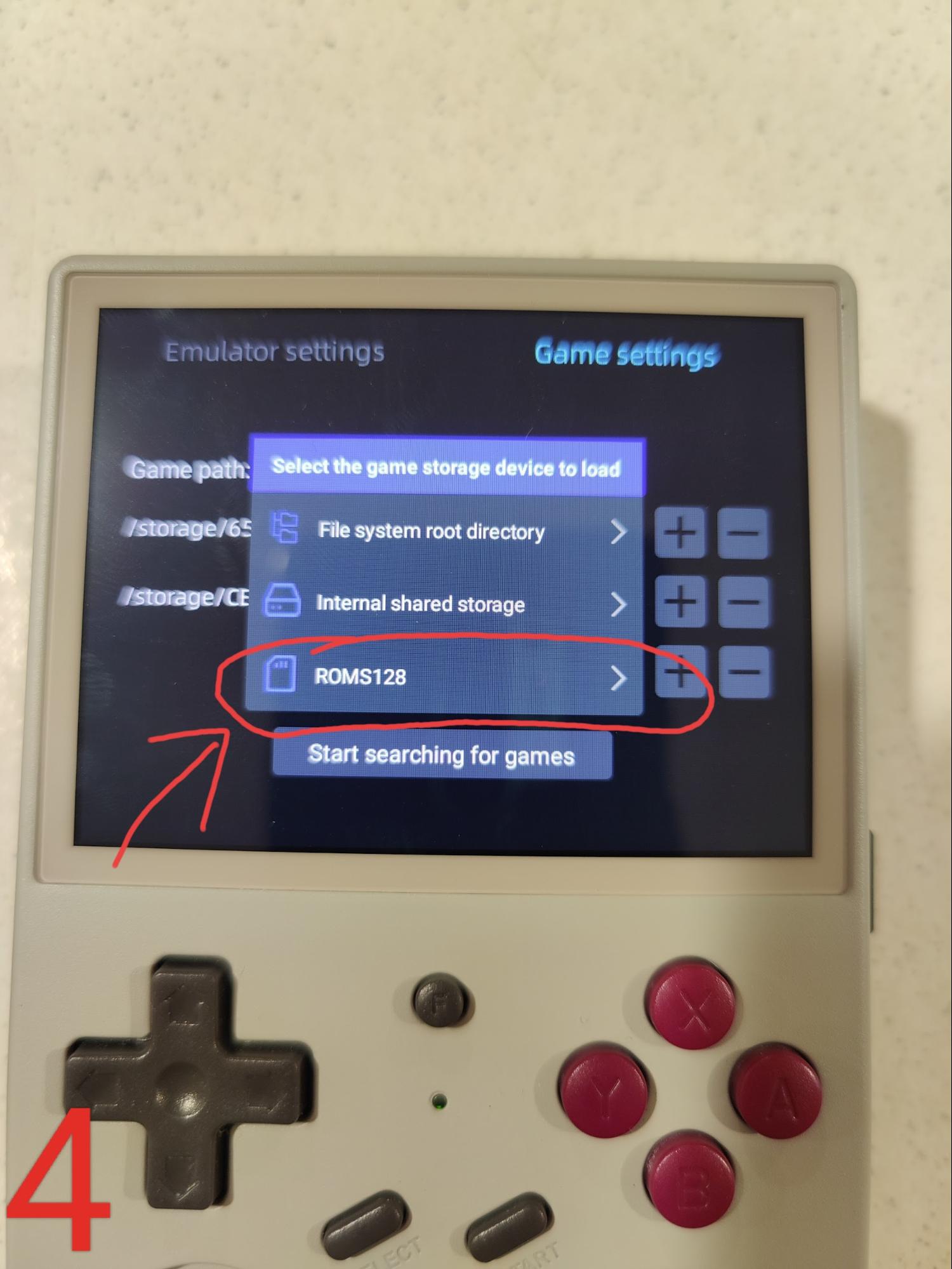
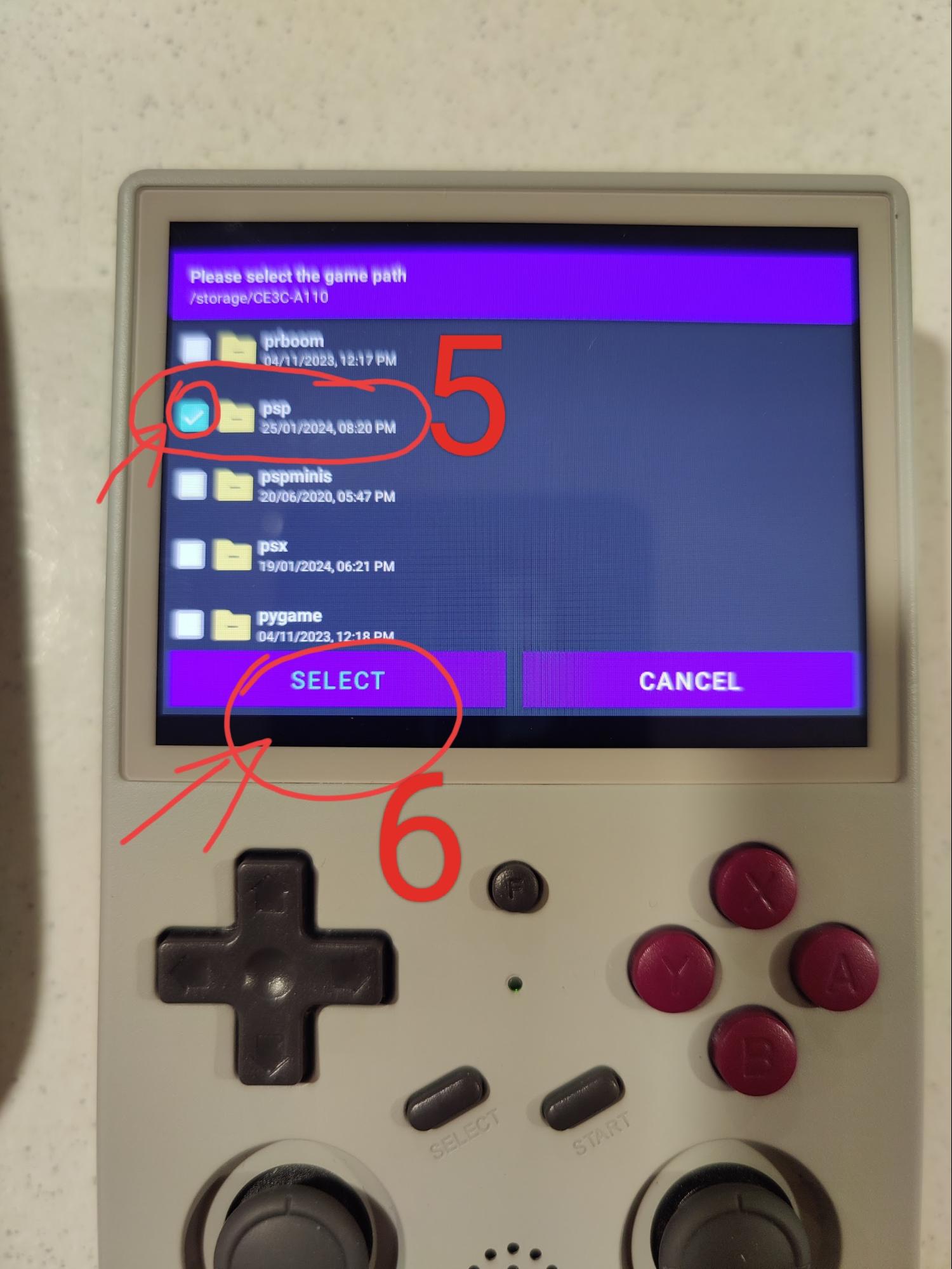
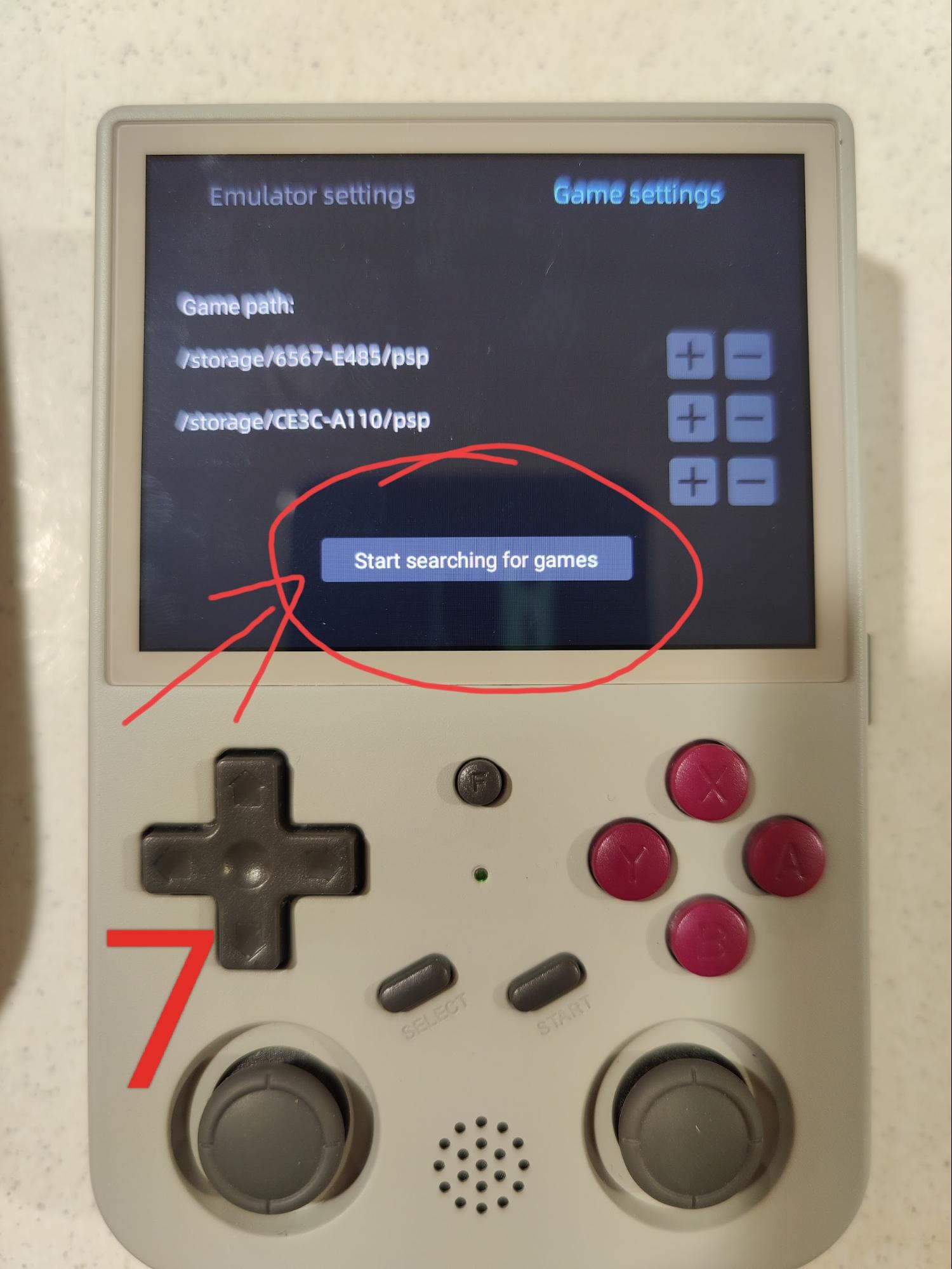
Once in Android, follow these steps to detect your TF2 games
card:
-
1
Tap the Anbernic icon.
-
2
Under Emulators, hold X for 3
seconds, then tap Confirm TF2 Settings.
-
3
Wait around 3 minutes for setup to complete. Repeat for each
console if required.
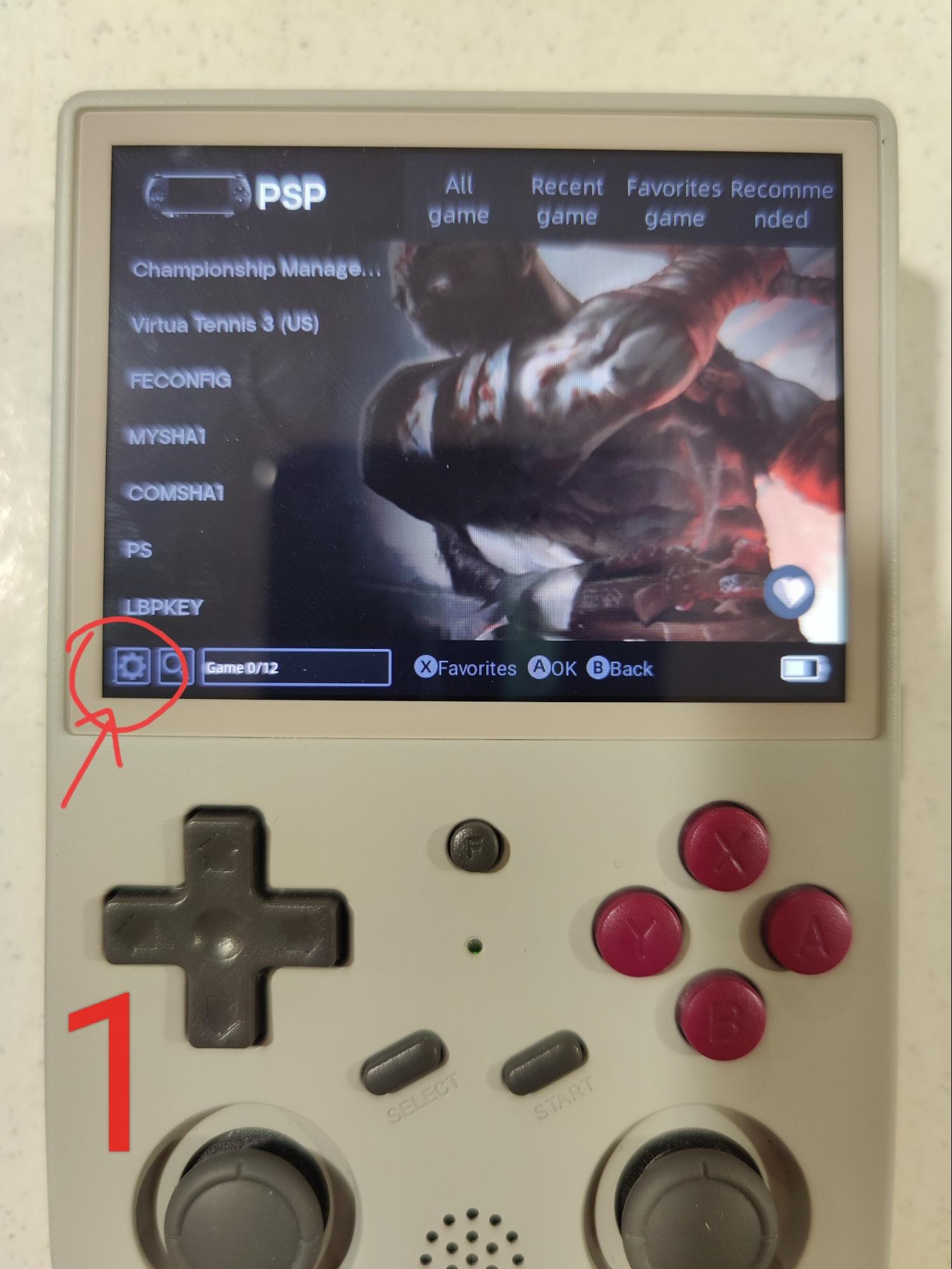
If that does not work, try this alternative method below.
Repeat this for each console family, including Nintendo, Sega,
PlayStation, and any others you want Android to detect.
Console Notes
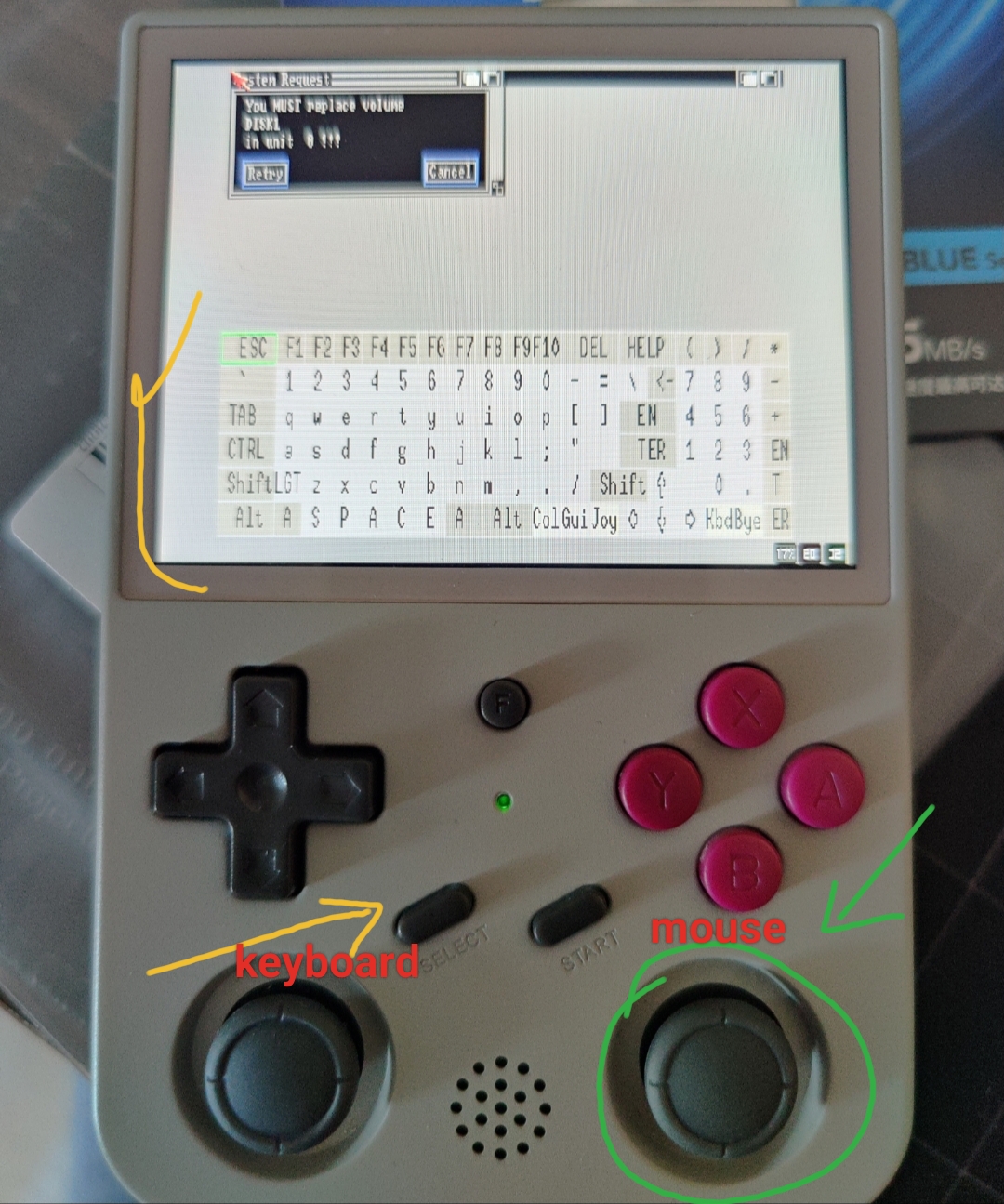
Amiga
- Mouse: L2 + R2
- Keyboard: hold START + A to type letters
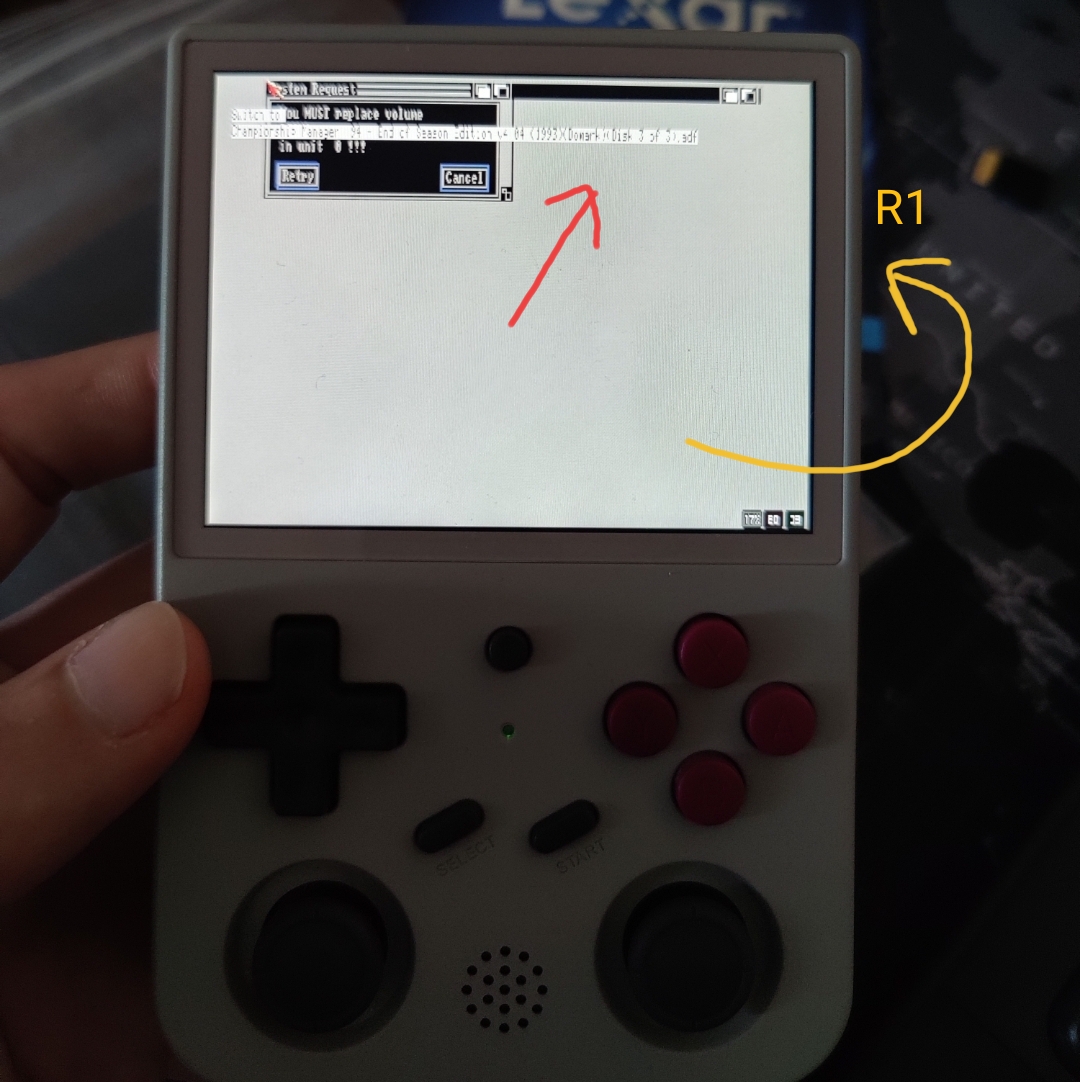
Championship Manager
- Start: L2 or B
-
Change disks: R1/L1. A small message shows the
current disk.
- Keyboard: SELECT
- Mouse: right joystick
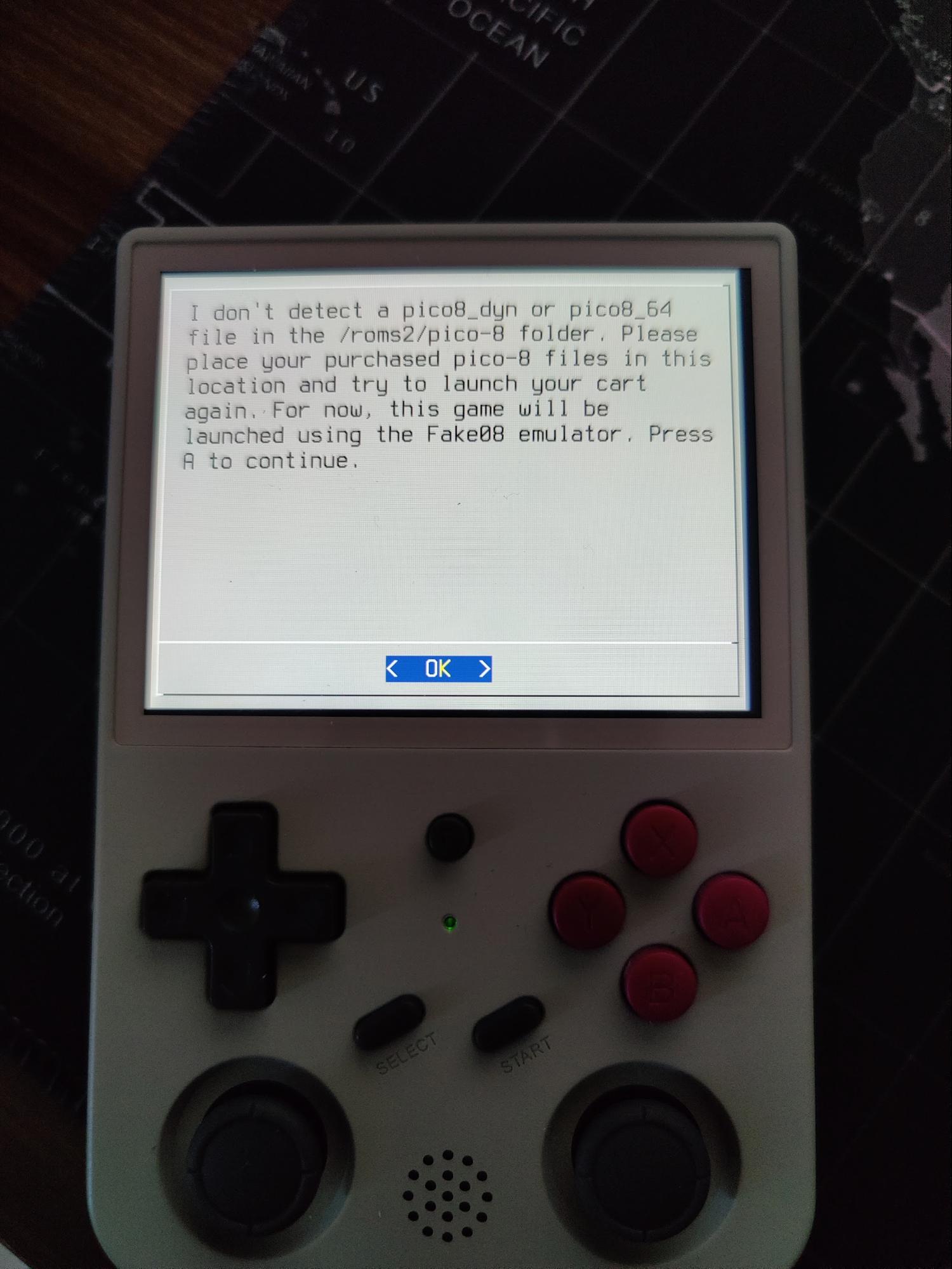
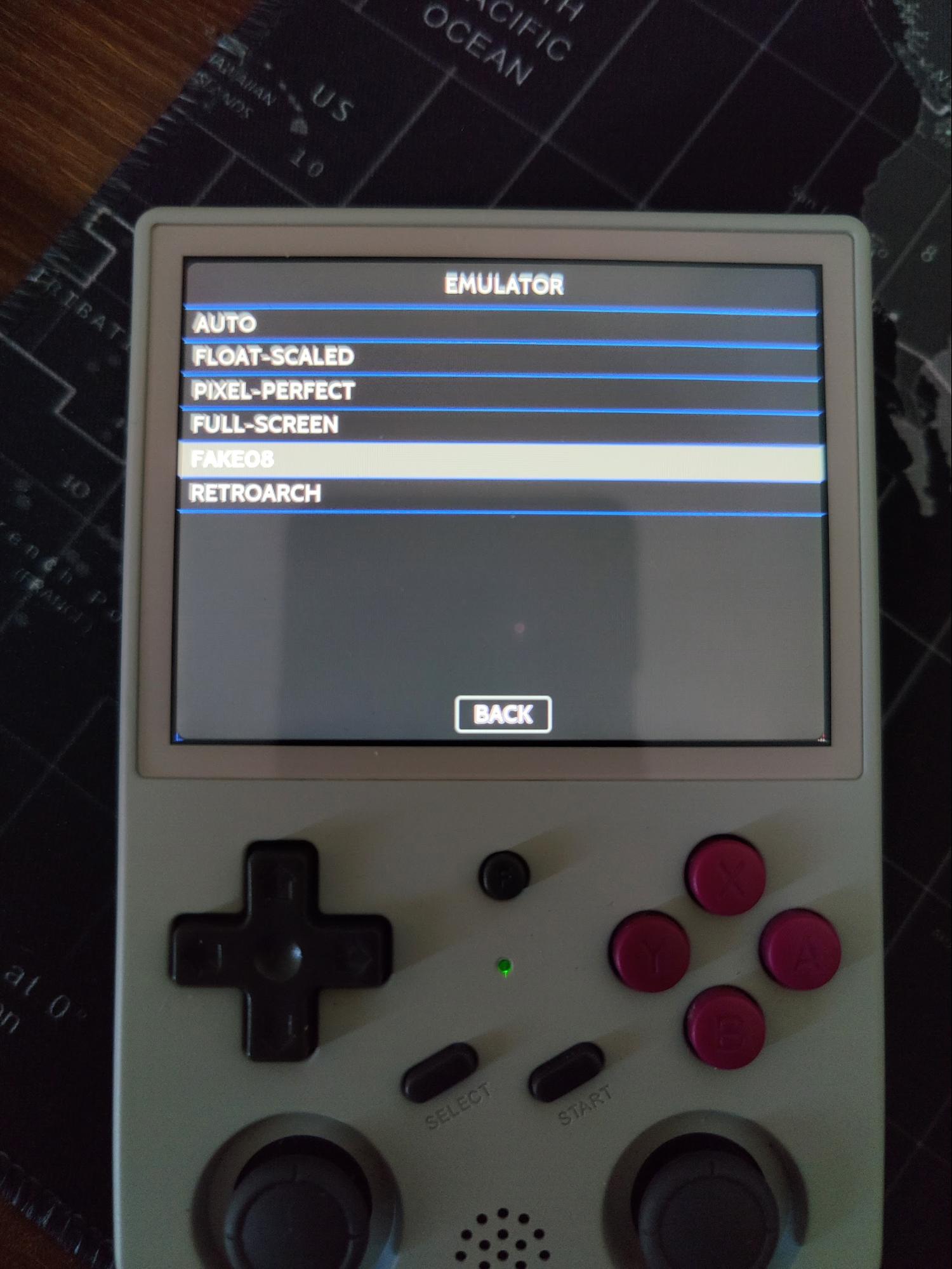
PICO-8
If a PICO-8 game does not start properly, open
START → Emulator Settings →
Pico-8 Emulator and change Auto to
Fake08.
Troubleshooting
-
If games do not appear, ensure
Switch to second SD for ROMs was run and the game
list was refreshed.
-
Verify ROM folder names exactly match ArkOS expected format.
-
On dual-boot devices, remember Android will not automatically
detect ArkOS cards unless configured.
-
For advanced help, see the
ArkOS FAQ for RG353V.